
Tabs
Search at the top of the page narrows every tab to the Bots whose name or creator matches. The tab, search, and view are kept in the page’s URL, so the browser’s back button from a Bot returns to the same place.
Views
The Layout menu next to the search switches the Personal tab between three views of the same Bots. Team’s Bots and Archived always show tiles, as in the Gallery.
Each session shows its status:
- Needs you: the session is waiting on you, such as for an answer or an approval.
- Working: Devin is working in it.
- Done: the session has finished or is idle.
Canvas
The Canvas is the default view. You sit at the top, as in an org chart, with a card for each of your Bots below you, newest activity first. Each card shows the Bot’s name, its latest chat message, its session count, and its sessions grouped by folder. A Bot shows its five latest sessions first; Show more opens the rest.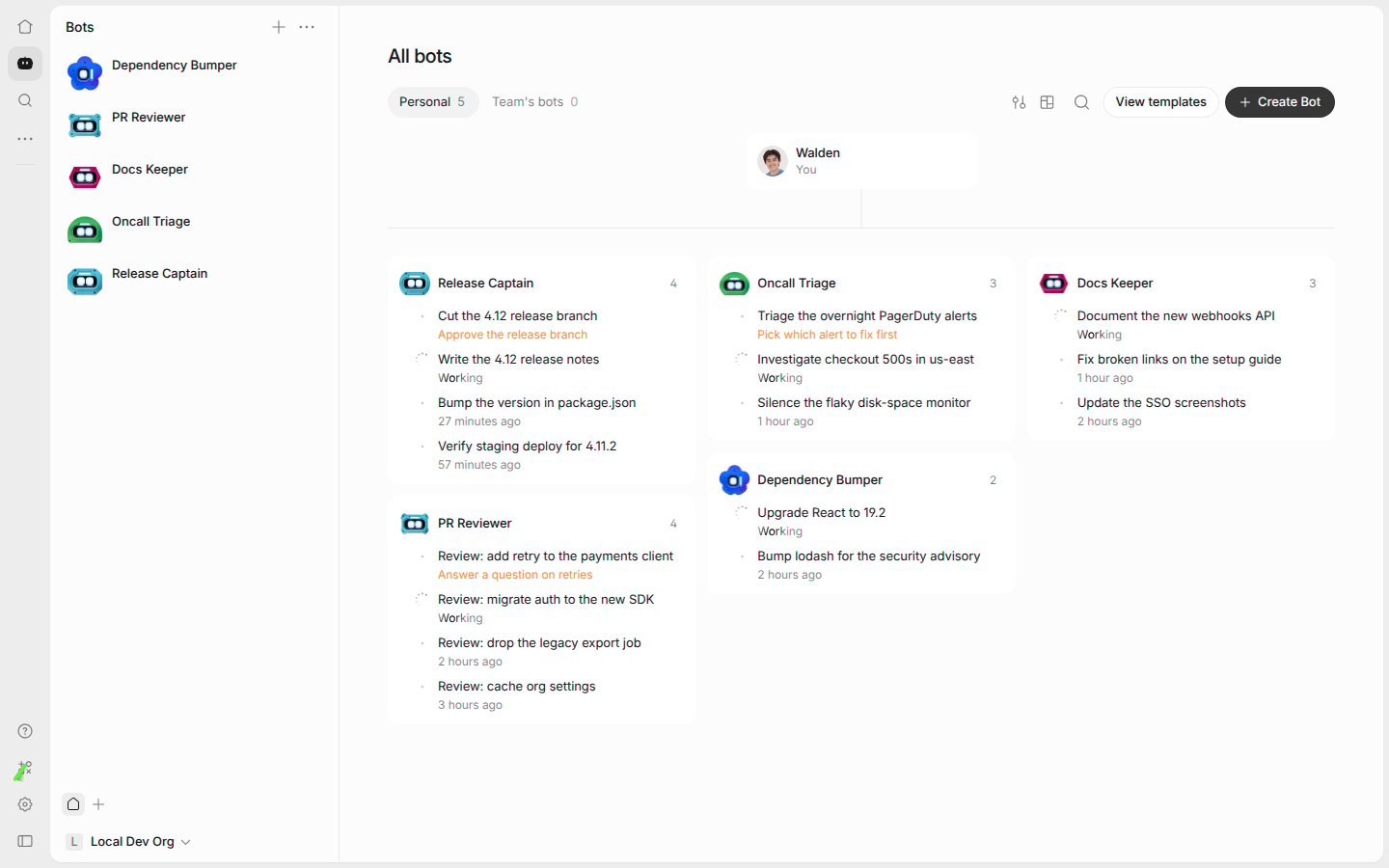
List
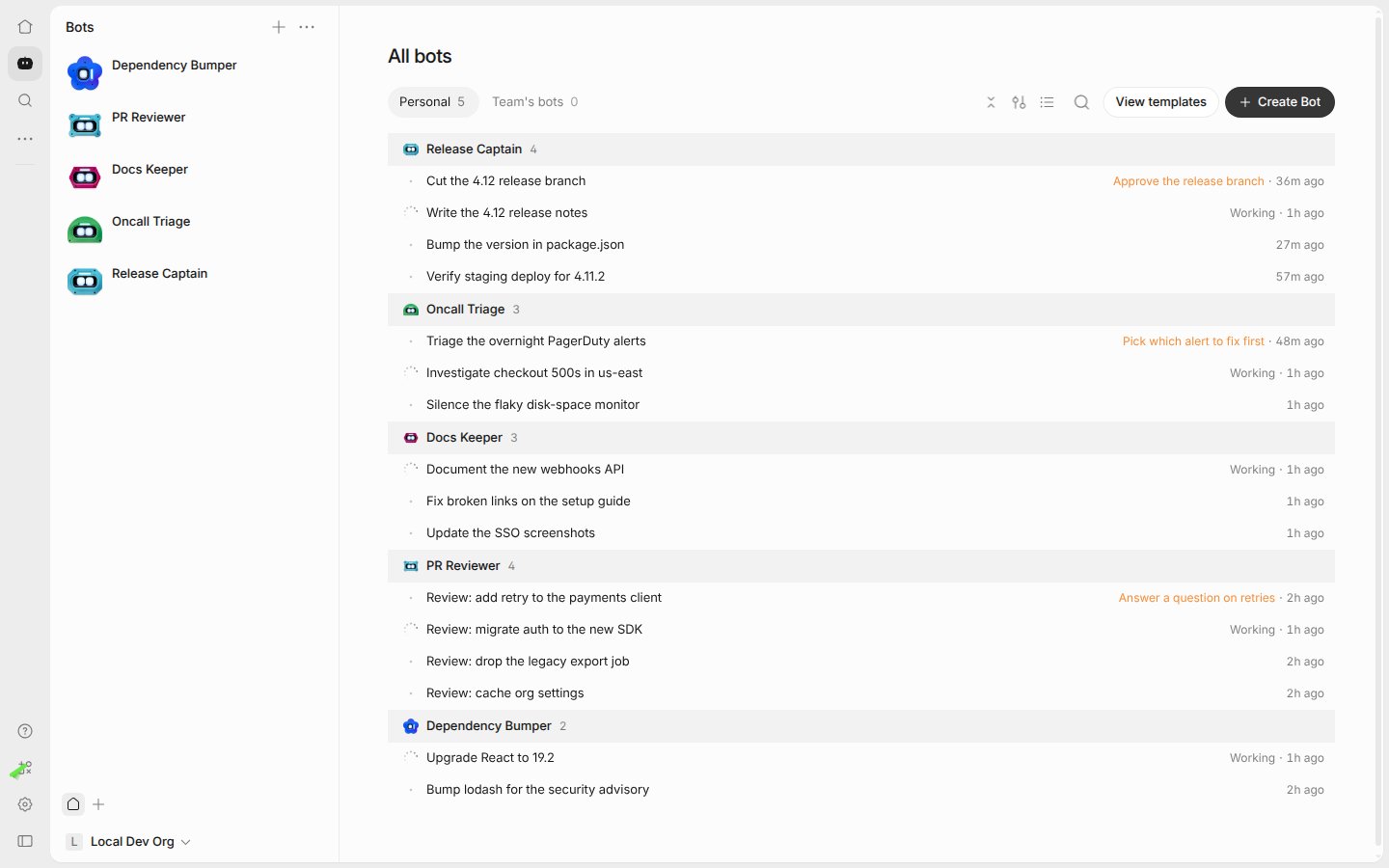
The List puts the sessions of all your Bots in one column. By default it groups them by Bot, each with a header you can click to fold. In the view’s menu:- Group groups the sessions by Bot or by Status, which puts everything that needs you in one group.
- Sort orders the Bots by Most recent, Needs you first, Name, or Most sessions.
- Property visibility shows or hides each session’s status, last update, and pull requests.
Gallery
The Gallery shows a tile for each Bot, with its avatar and name. Click a tile to open the Bot’s chat. Its menu has the Bot’s actions, the same as in the sidebar.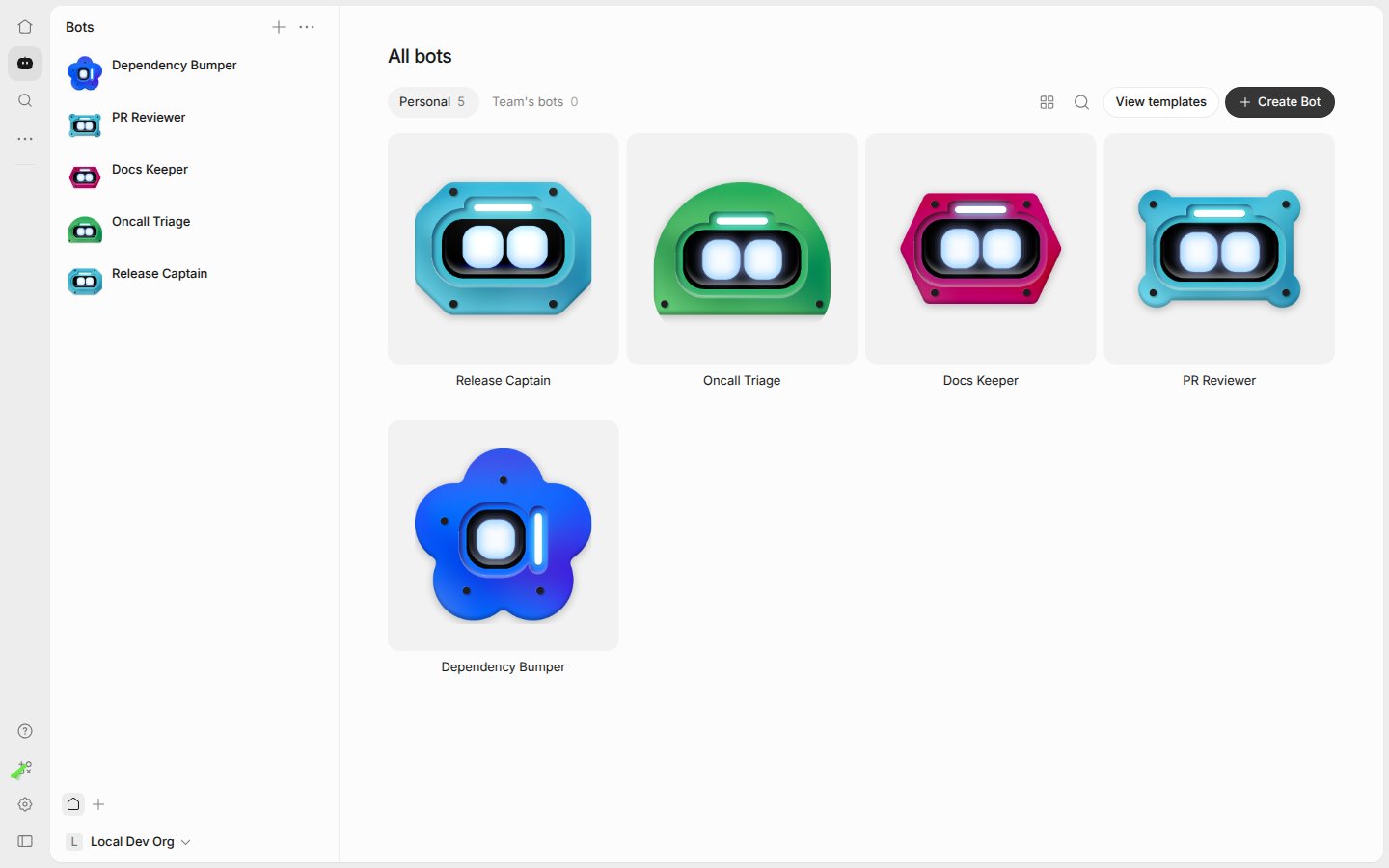
Filter sessions
The Filter menu, in the Canvas and List, narrows the sessions shown:- Status shows only sessions that need you, are working, or are done. Only next to a status picks it alone.
- Bot shows only the Bots you pick.