

Why integrate Devin with GitLab?
Integrating Devin with your GitLab repositories allows Devin to create merge requests, read and respond to your MR comments, and collaborate effectively with your team. This lets Devin be a true collaborator on your engineering team.Using a self-hosted GitLab instance? We support GitLab Self-Managed (version 15.0 and later) for users on our Enterprise plan. Simply click the dropdown on the “Connect” button and select “Self-Hosted”. See the GitLab Self-Managed Integration guide for full setup instructions.
Setting up the Integration
The setup is easy! Here’s how to get started:- Create a new GitLab account specifically for Devin (just like you’d create a personal account). You’ll use this account, not your personal one, during the integration process.
- In your Devin account, go to Settings > Connections > Gitlab and click “Connect”.
-
You’ll be redirected to GitLab where you should:
- Log in with the GitLab account you created for Devin (not your personal account)
- Grant the necessary permissions for Devin to work with your repositories
- Once completed, you’ll return to the Devin settings page where you can confirm the integration is active.
Webhook Configuration
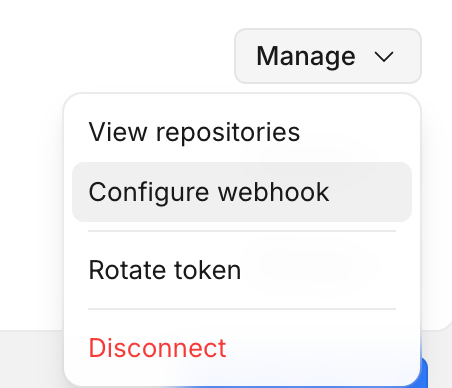
Configuring a webhook allows Devin to automatically receive real-time notifications when specific events occur in GitLab (such as opening or updating merge requests and commenting on merge requests). To configure the webhook:- In your Devin account, go to Settings > Connections
- Locate the GitLab instance you want to configure
- Click the Manage dropdown
- Select Configure Webhook
- Follow the provided commands to complete the setup
Repository Permissions
For Core and Teams users
Once the integration is configured, you can @mention repositories directly in your prompts within the Devin web application.For Enterprise users
Once the integration is configured, you can delegate repositories to specific organizations from Enterprise Settings > Repository Permissions.- Go to Enterprise Repositories
- Select the correct organization
- Open Manage Permissions
- Add the relevant repositories with the appropriate read/write permissions
If repositories do not appear immediately after connecting, Devin refreshes the repository list periodically. You can manually refresh the repository list in Devin.
User Linking
For Enterprise users with a self-hosted GitLab instance, individual users can link their personal GitLab accounts to Devin. This allows Devin to act on behalf of individual users for GitLab operations. To link a personal GitLab account:- Ensure you are a member of a Devin organization with GitLab repository permissions
- Go to Personal Connections in your Devin settings
- Look for the GitLab integration
- Select the GitLab connection and complete the linking flow
Personal Connections only shows integrations for organizations the user belongs to. If the GitLab integration does not appear, confirm that you are a member of a Devin organization with GitLab repository permissions.
Using Devin with the GitLab Integration
After connecting GitLab, set up your repositories on Devin’s Machine.How Devin responds to MR comments. Once the webhook is configured, a comment on a merge request that a Devin session is tracking is delivered to that session in real time. By default, this wakes a sleeping session and Devin responds to the comment.To limit this, an organization admin can turn on Require @Devin to respond under Settings > Devin > Pull requests. With that setting enabled, Devin only wakes and responds to comments that start with
@Devin (the devinai prefix is also accepted).Comments that contain (aside) or !aside, or that start with aside, are always ignored regardless of this setting, so you can discuss the MR without waking Devin.Without a webhook, MR comments are not delivered to the session in real time; Devin can still address them if you point them out directly in the session.Best Practices
- Create a dedicated GitLab account for Devin
- Enable branch protections on main/master branches
- Configure the webhook for real-time event notifications
Support
- Create a Slack connect channel with our team at app.devin.ai/settings/support
- Share session links when reporting issues and provide screenshots