

Overview
This guide walks through the full setup for integrating a GitLab instance with Devin, including both the admin setup and the end-user setup. Devin supports GitLab Self-Managed versions 15.0 and later. There are two parts to the integration:- Admin setup
- Connect the organization’s self-hosted GitLab instance to Devin
- Set up a service account
- Configure repository access
- Register OAuth so users can link their personal GitLab identities
- User setup
- Link an individual user’s GitLab account to their Devin account
The admin setup must be completed before any user can link their GitLab account. Only Enterprise Admins can perform the admin setup steps.
Part 1: Admin Setup
Step 1: Create a Service Account in GitLab
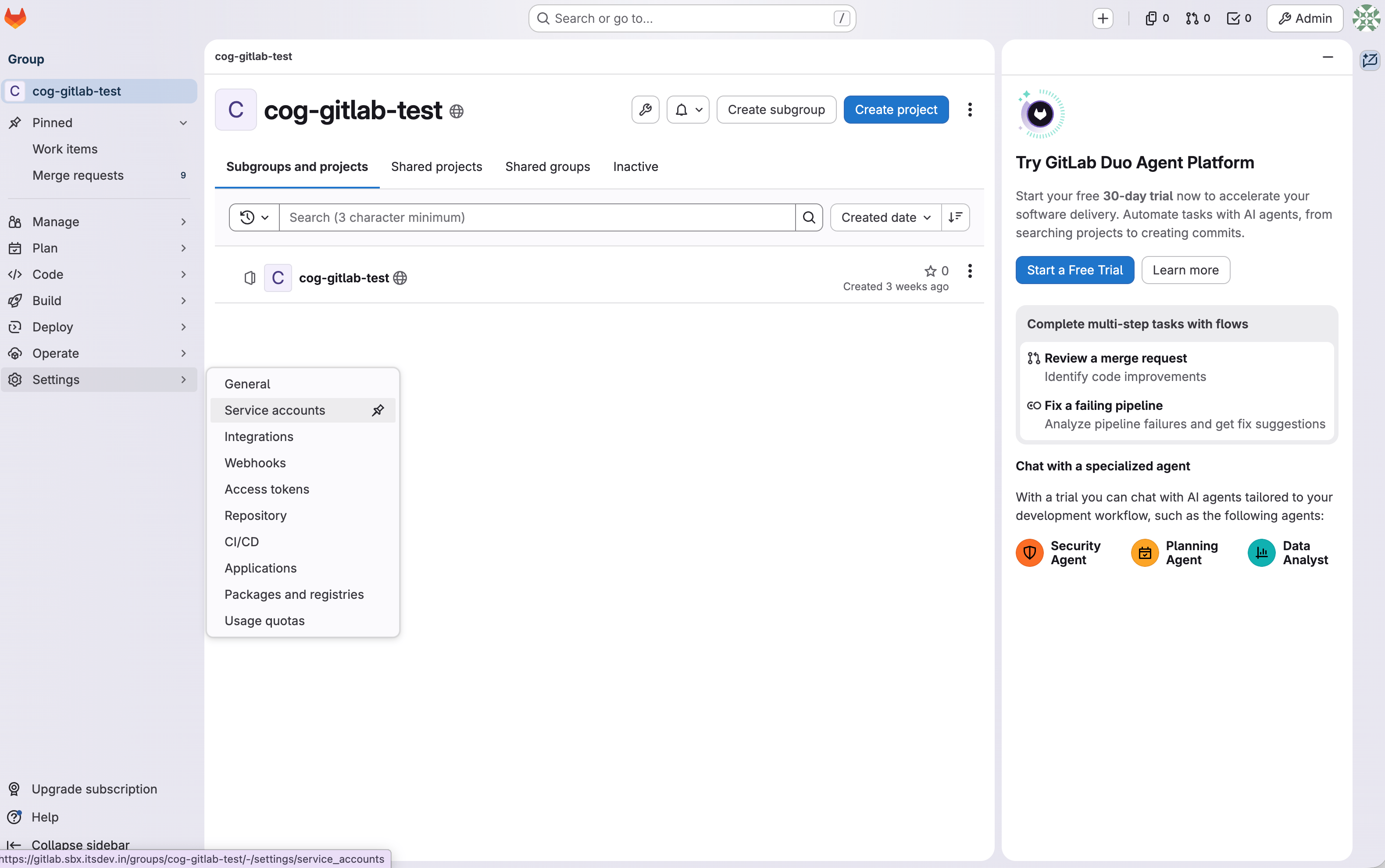
In GitLab:- Go to the correct GitLab group
- Navigate to Settings
- Open Service Accounts
- Create a new service account
Step 2: Add the Service Account as a Group Member
Still in GitLab:- Go to the group’s Members page
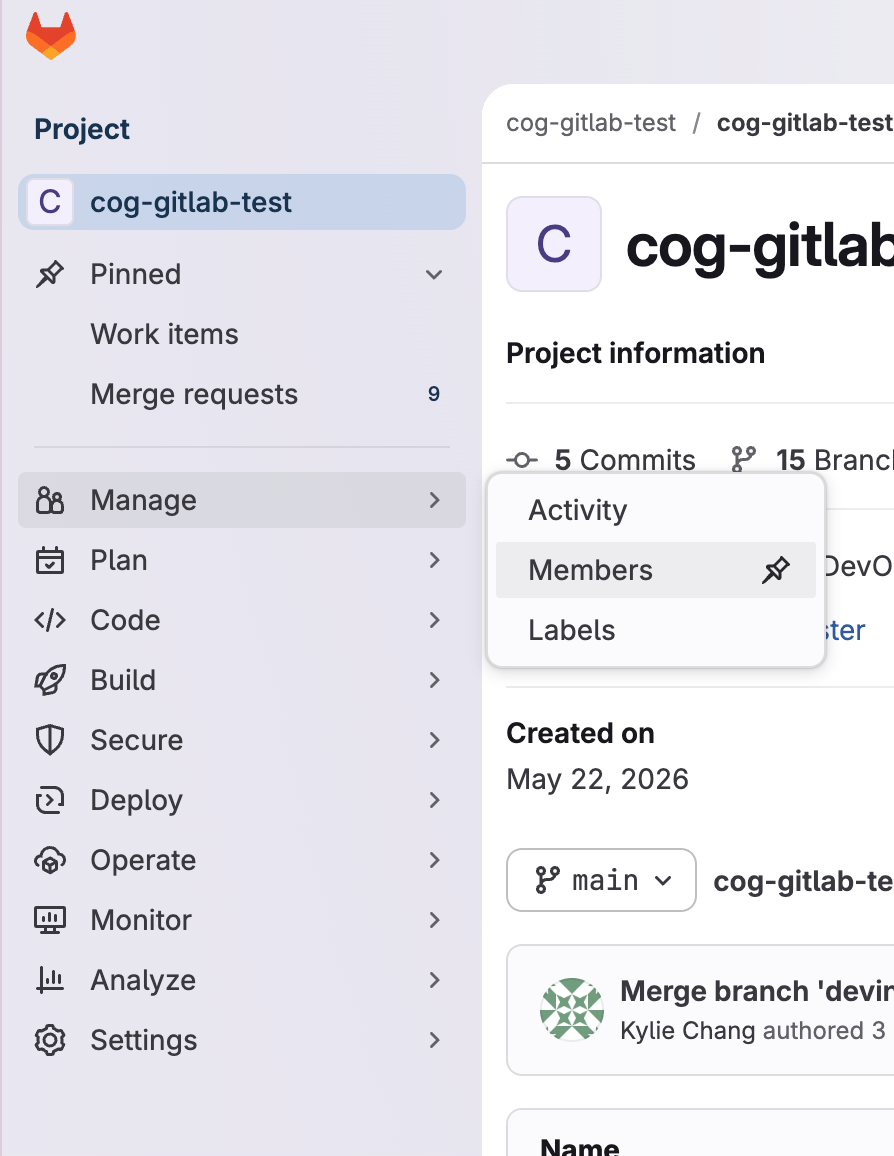
- Add the service account as a member of the group
- Grant it the Developer role
Step 3: Generate a Personal Access Token for the Service Account
After creating the service account:- Locate the newly created service account
- Click on the three dots > Manage access tokens > Generate a new personal access token > Select api under access scopes
- Copy and store that token securely
Ensure you are selecting the service account’s token, and not your personal access token found in your user’s preferences. You want Devin to act as the service account, not as you. You will use this token when adding the GitLab connection in Devin.
Step 4: Add the GitLab Connection in Devin
In Devin:- Go to Enterprise Settings
- Open Connections
- Add a new connection
- Enter:
- Your self-hosted GitLab URL (if applicable)
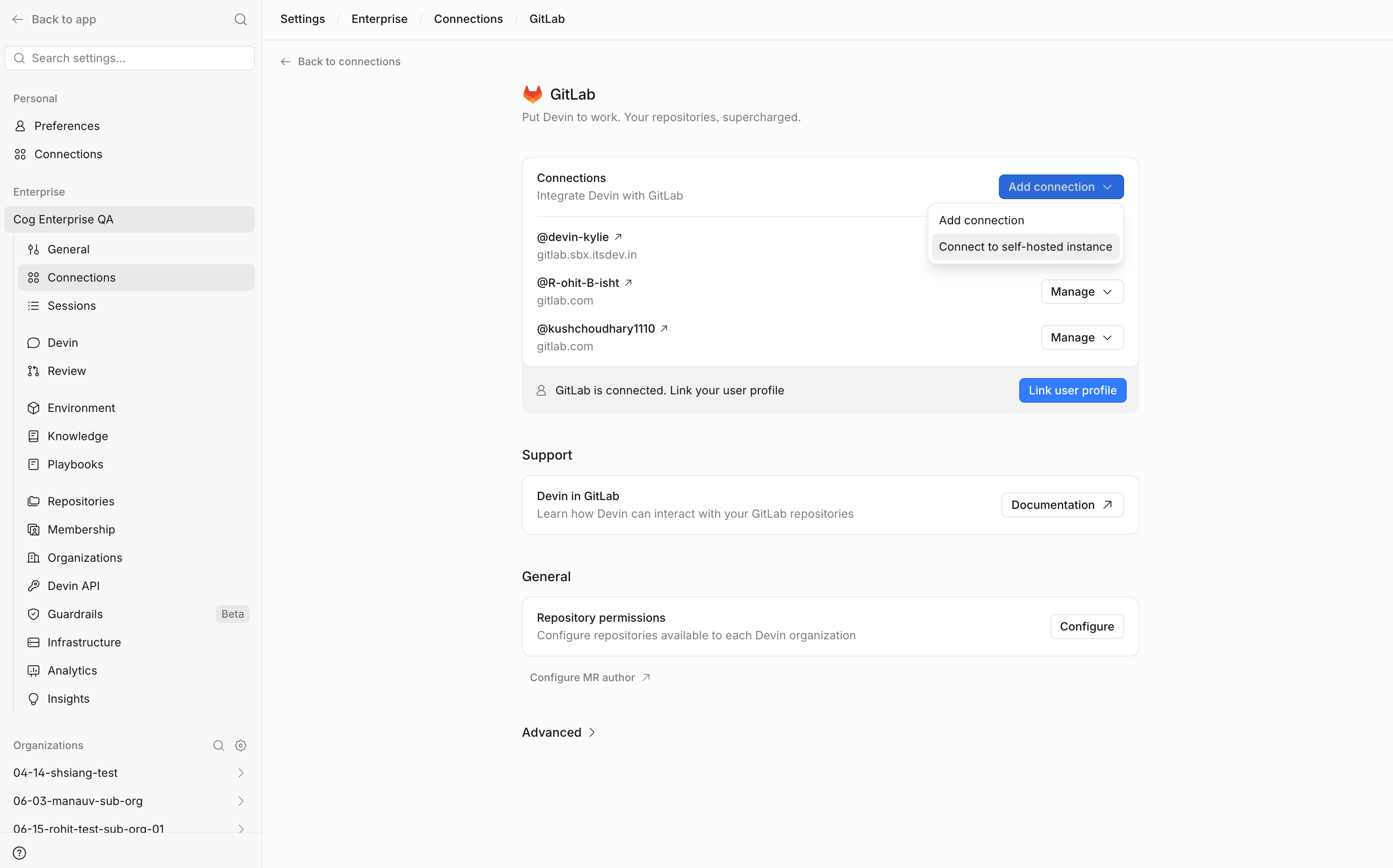
- The personal access token created for the service account
Step 5: Configure Webhook
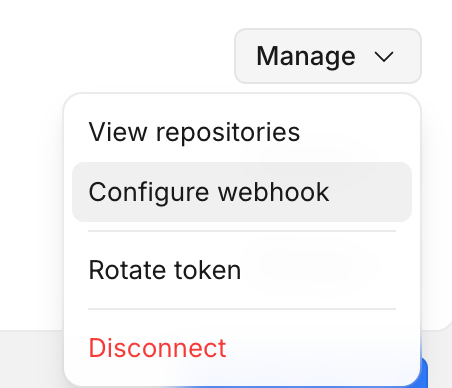
Configuring a webhook allows Devin to automatically receive real-time notifications when specific events occur in GitLab (such as opening or updating merge requests and commenting on merge requests). To configure the webhook:- In Enterprise Settings > Connections, locate the GitLab instance you just added
- Click the Manage dropdown
- Select Configure Webhook
- Follow the provided commands to complete the setup
Step 6: Verify Repository Access
After adding the connection:- Confirm that the service account has access to the repositories you want to use
- In Devin, if repositories do not appear immediately, manually refresh the repository list
- Go to Enterprise Repositories
- Select the correct organization
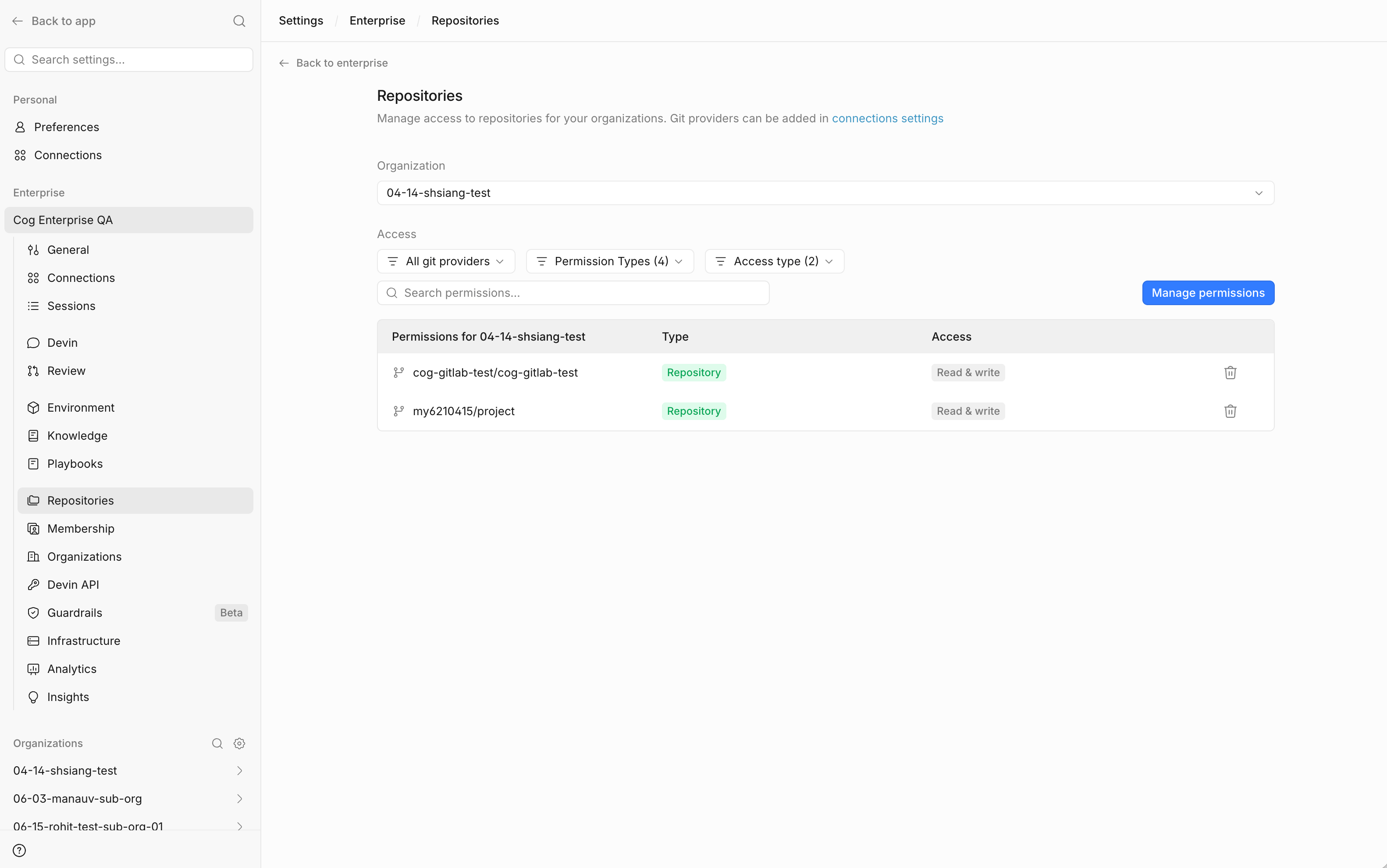
- Open Manage Permissions
- Add the relevant repositories with the appropriate read/write permissions

If repos are missing, it may be because Devin refreshes the repository list periodically rather than instantly.
Part 2: Enable User Linking for Self-Hosted GitLab
Step 7: Register an OAuth Application on the Self-Hosted GitLab Instance
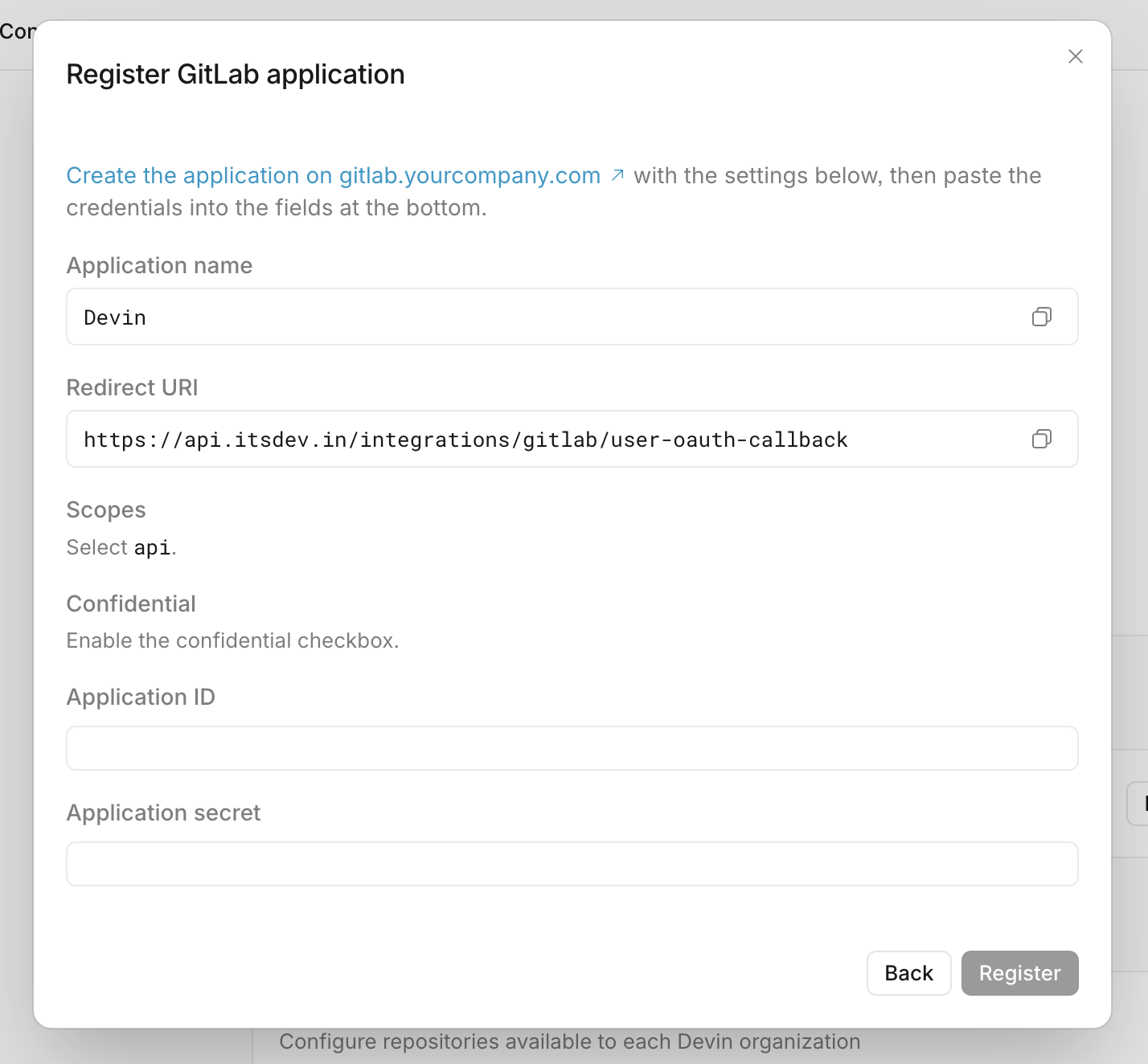
To allow individual users to link their GitLab identity to Devin, the admin must register an OAuth app for the self-hosted GitLab instance. In Devin:- Go to the enterprise GitLab connection area
- Open Advanced
- Go to the self-hosted GitLab section
- Start the flow to register an OAuth application
Step 8: Complete OAuth App Registration in GitLab
Follow the link in the registration modal to open the GitLab application form. Fill in the fields as shown:- Set the Name and Redirect URI exactly as shown in the Devin modal
- Enable the Confidential checkbox
- Select the api scope
- Click Save application
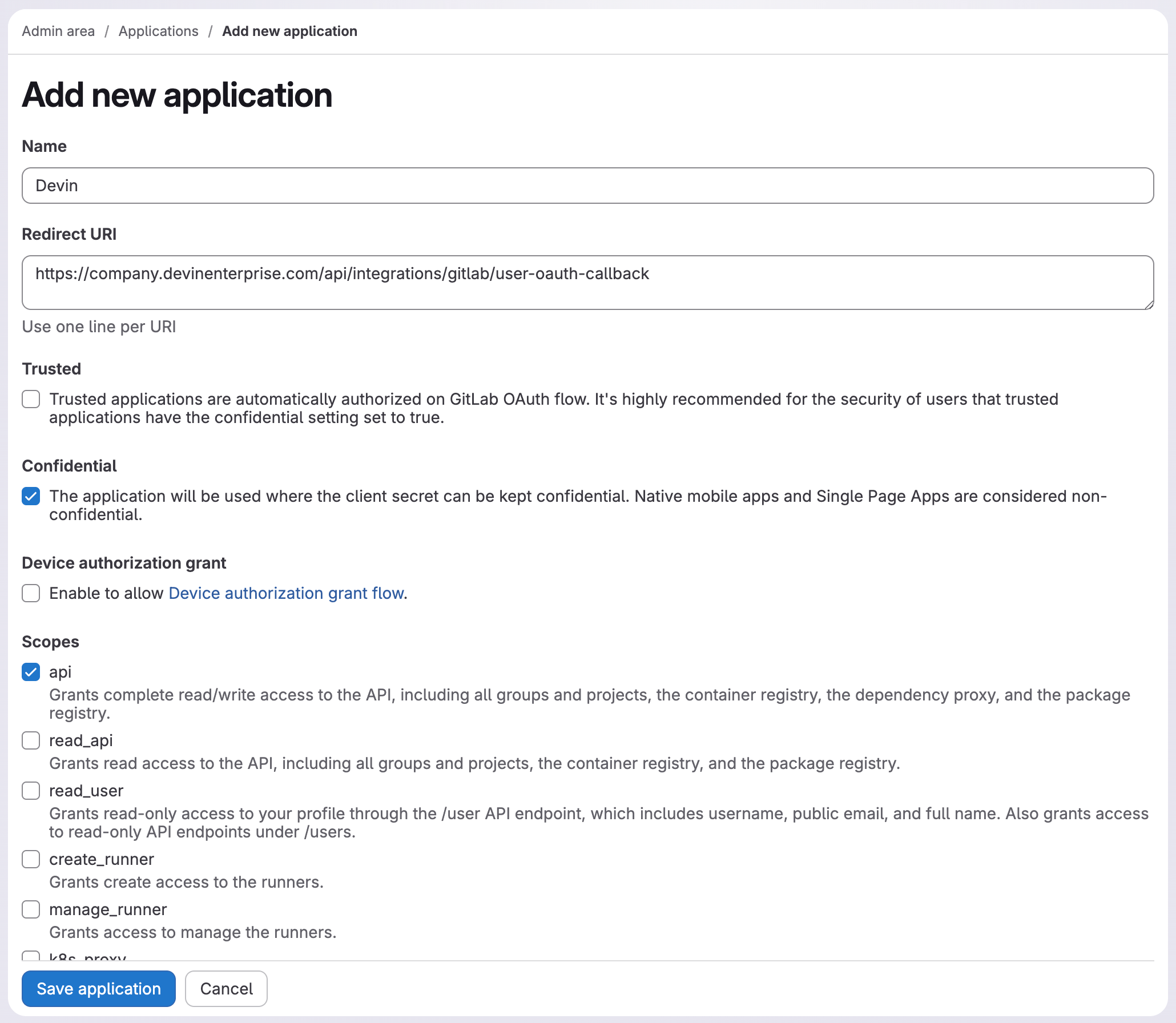
- Copy the Application ID and Application Secret from GitLab
- Return to Devin and paste those values into the registration modal
- Click Register
Part 3: Organization Membership Requirement
Step 9: Make Sure the User Belongs to the Correct Devin Organization
Before a user can link their GitLab account, they must be a member of a Devin organization with GitLab repository permissions. In Devin:- Go to the organization membership area
- Confirm the user is part of a Devin organization with GitLab repository permissions
- If they are not, add them first
Personal Connections only shows integrations for organizations the user belongs to. If a user is not in a Devin organization with GitLab repository permissions, the GitLab integration may not appear at all.
Part 4: End-User Setup
Step 10: Open Personal Connections
As the end user in Devin:- Go to Personal Connections
- Look for the self-hosted GitLab integration
Step 11: Link the User’s GitLab Account
Once the integration appears:- Select the self-hosted GitLab connection
- Complete the linking flow
- Link the user’s GitLab account to their Devin account