

Cascade is the legacy agent in Devin Desktop. New conversations start with Devin Local; existing Cascade conversations remain available from the history and sidebar.
Overview
Devin Desktop’s Cascade unlocks a new level of collaboration between human and AI. Cascade is one of two local agents in Devin Desktop; the other is the Devin Local agent, which new tabs default to when you haven’t chosen a preferred agent. To open Cascade, pressCmd/Ctrl+L or click the Cascade icon in the top right corner of the Devin Desktop window. Any selected text in the editor or terminal will automatically be included.
Cascade, Devin Local, and every other ACP agent are unavailable while a workspace is open in Restricted Mode.
Quick links to features
Terminal
An upgraded Terminal experience.
Workflows
Automate repetitive trajectories.
Model selection
Select your desired model from the selection menu below the Cascade conversation input box. Click below to see the full list of the available models and their availability across different plans and pricing.Models
Model availability in Devin Desktop.
Cascade Code / Cascade Chat
Cascade comes in two primary modes: Code and Chat. Code mode allows Cascade to create and make modifications to your codebase, while Chat mode is optimized for questions around your codebase or general coding principles. While in Chat mode, Cascade may propose new code to you that you can accept and insert.Plans and Todo Lists
Cascade has built-in planning capabilities that help improve performance for longer tasks. In the background, a specialized planning agent continuously refines the long-term plan while your selected model focuses on taking short-term actions based on that plan. Cascade will create a Todo list within the conversation to track progress on complex tasks. To make changes to the plan, simply ask Cascade to make updates to the Todo list. Cascade may also automatically make updates to the plan as it picks up new information, such as a Memory, during the course of a conversation.Queued Messages
While you are waiting for Cascade to finish its current task, you can queue up new messages to execute in order once the task is complete. To add a message to the queue, simply type in your message while Cascade is working and pressEnter.
- Send immediately: Press Enter again on an empty text box to send it right away.
- Delete: Remove any message from the queue before it’s sent
Tool Calling
Cascade has a variety of tools at its disposal, such as Search, Analyze, MCP, and the terminal. It can detect which packages and tools that you’re using, which ones need to be installed, and even install them for you. Just ask Cascade how to run your project and press Accept.By default, Cascade can make up to 40 invocations per prompt. If the trajectory stops at this limit, simply press the
continue button and Cascade will resume from where it left off. However, each continue will count as a new prompt credit due to tool calling costs.Auto-Continue setting to have Cascade automatically continue its response when it hits the invocation limit instead of stopping. These will consume a prompt credit(s) corresponding to the model you are using.
In settings.json, this is the devin.autoContinue setting: 0 or a negative value turns auto-continue on, so Cascade continues indefinitely, and a positive value (the default is 40) turns it off, so Cascade stops at the invocation limit and prompts you to continue.
Voice input
Use Voice input to use your voice to interact with Cascade. In its current form it can transcribe your speech to text.Named Checkpoints and Reverts
You have the ability to revert changes that Cascade has made. Simply hover your mouse over the original prompt and click on the revert arrow on the right, or revert directly from the table of contents. This will revert all code changes back to the state of your codebase at the desired step. You can also create a named snapshot/checkpoint of the current state of your project from within the conversation, which you can easily navigate to and revert at any time.Real-time awareness
A unique capability of Devin Desktop and Cascade is that it is aware of your real-time actions, removing the need to prompt with context on your prior actions. Simply instruct Cascade to “Continue”.Send problems to the agent
When you have problems in your code which show up in the Problems panel at the bottom of the editor, send them to the agent as context:- Click
Send all to agentat the top of the Problems panel to send every problem currently listed. - Click
Send to agentnext to a file in the Problems panel to send only that file’s problems.
Explain and fix
For any errors that you run into from within the editor, you can simply highlight the error and clickExplain and Fix to have Cascade fix it for you.

Ignoring files
If you’d like Cascade to ignore files, you can add your files to.devinignore (or the legacy .codeiumignore) at the root of your workspace. This will prevent Cascade from viewing, editing or creating files inside of the paths designated. You can declare the file paths in a format similar to .gitignore. See Ignore Files for details.
Global .codeiumignore
For enterprise customers managing multiple repositories, you can enforce ignore rules across all repositories by placing a global.codeiumignore file in the ~/.codeium/ folder. This global configuration will apply to all Devin Desktop workspaces on your system and works in addition to any repository-specific .codeiumignore files.
Linter integration
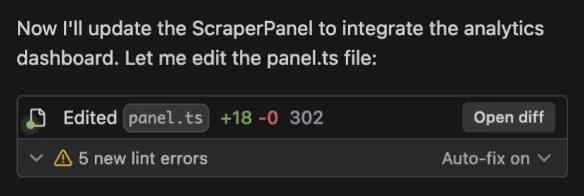
Cascade can automatically fix linting errors on generated code. This is turned on by default, but it can be disabled by clickingAuto-fix on the tool call, and clicking disable. This edit will not consume any credits.
Sharing your conversation
This feature is currently only available for Teams and Enterprise customers.
... Additional options button in the top right of the Cascade panel, and clicking Share Conversation.
@-mention previous conversations
You can also reference previous conversations with other conversations via an@-mention.
When you do this, Cascade will retrieve the most relevant and useful information like the conversation summaries and checkpoints, and specific parts of the conversation that you query for. It typically will not retrieve the full conversation as to not overwhelm the context window.
Simultaneous Cascades
Users can have multiple Cascades running simultaneously. You can navigate between them using the dropdown menu in the top left of the Cascade panel. If you expect two Cascades to edit similar files, you should consider using worktrees to keep them isolated.Workflows
Workflows enable users to define a series of steps to guide Cascade through a repetitive set of tasks, such as deploying a service or responding to PR comments. These Workflows are saved as markdown files, allowing users and their teams an easy repeatable way to run key processes. Once saved, Workflows can be invoked in Cascade via a slash command with the format of/[name-of-workflow].
Workflows are manual-only — Cascade will never invoke a workflow automatically. If you want Cascade to pick up a procedure on its own, use a Skill instead.
How it works
Rules generally provide large language models with guidance by providing persistent, reusable context at the prompt level. Workflows extend this concept by providing a structured sequence of steps or prompts at the trajectory level, guiding the model through a series of interconnected tasks or actions.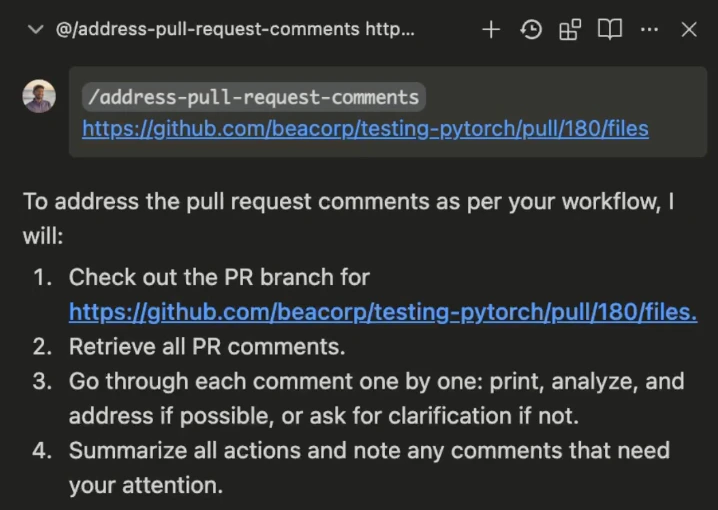
/[workflow-name] command.
Upon invocation, Cascade sequentially processes each step defined in the Workflow, performing actions or generating responses as specified.
How to create a Workflow
To get started with Workflows, click on theCustomizations icon in the top right slider menu in Cascade, then navigate to the Workflows panel. Here, you can click on the + Global or + Workspace button to create a new Workflow at either the global or workspace level, respectively.
Workflows are saved as markdown files within .devin/workflows/ directories (or the legacy .windsurf/workflows/) and contain a title, description, and a series of steps with specific instructions for Cascade to follow.
Workflow Discovery
Devin Desktop automatically discovers workflows from multiple locations to provide flexible organization:- Current workspace and sub-directories: All
.devin/workflows/(and legacy.windsurf/workflows/) directories within your current workspace and its sub-directories - Git repository structure: For git repositories, Devin Desktop also searches up to the git root directory to find workflows in parent directories
- Multiple workspace support: When multiple folders are open in the same workspace, workflows are deduplicated and displayed with the shortest relative path
Workflow Storage Locations
When you create a new workflow through the UI, it will be saved in the
.devin/workflows/ directory of your current workspace, not necessarily at the git root. If you declined migration for a workspace that still has a .windsurf/ directory, it is saved in .windsurf/workflows/ instead. To create a global workflow, use the + Global button in the Workflows panel or create the file directly in ~/.codeium/windsurf/global_workflows/.
Workflow files are limited to 12000 characters each.
Generate a Workflow with Cascade
You can also ask Cascade to generate Workflows for you! This works particularly well for Workflows involving a series of steps in a particular CLI tool.Example Workflows
There are a myriad of use cases for Workflows, such as:/address-pr-comments
This is a Workflow our team uses internally to address PR comments:
/git-workflows
Commit using predefined formats and create pull requests with standardized title and descriptions using the appropriate CLI commands.
/dependency-management
Automate the installation or updating of project dependencies based on a configuration file (e.g., requirements.txt, package.json).
/code-formatting
Automatically run code formatters (like Prettier, Black) and linters (like ESLint, Flake8) on file save or before committing to maintain code style and catch errors early.
/run-tests-and-fix
Run or add unit or end-to-end tests and fix the errors automatically to ensure code quality before committing, merging, or deploying.
/deployment
Automate the steps to deploy your application to various environments (development, staging, production), including any necessary pre-deployment checks or post-deployment verifications.
/security-scan
Integrate and trigger security vulnerability scans on your codebase as part of the CI/CD pipeline or on demand.
System-Level Workflows (Enterprise)
Enterprise organizations can deploy system-level workflows that are available globally across all workspaces and cannot be modified by end users without administrator permissions. This is ideal for enforcing organization-wide development processes, deployment procedures, and compliance workflows. System-level workflows are loaded from OS-specific directories. Devin Desktop loads theDevin workflows directory if it exists and only falls back to the legacy Windsurf workflows directory when it does not. The two are not merged, so move any legacy workflows into the Devin directory when you create it:
macOS:
.md files) in the appropriate directory for your operating system. The system will automatically load all .md files from these directories.
Workflow Precedence
When workflows with the same name exist at multiple levels, system-level workflows take the highest precedence:- System (highest priority) - Organization-wide workflows deployed by IT
- Workspace - Project-specific workflows in
.devin/workflows/(or legacy.windsurf/workflows/) - Global - User-defined workflows in
~/.codeium/windsurf/global_workflows/ - Built-in - Default workflows provided by Devin Desktop
Important: System-level workflows should be managed by your IT or security team. Ensure your internal teams handle deployment, updates, and compliance according to your organization’s policies. You can use standard tools and workflows such as Mobile Device Management (MDM) or Configuration Management to do so.
Worktrees
Devin Desktop supports using git worktrees to run Cascade tasks in parallel without interfering with your main workspace. When using worktrees, each Cascade conversation gets its own session, allowing Cascade to make edits, or build and test code without interfering with your main workspace. The Devin Local agent can also start a session in an existing worktree, picked from its agent location selector, and bring the changes back with a Merge button.Basic worktree usage
The simplest way to get started with using worktrees is switch to the “Worktree” mode in the bottom right corner of the Cascade input.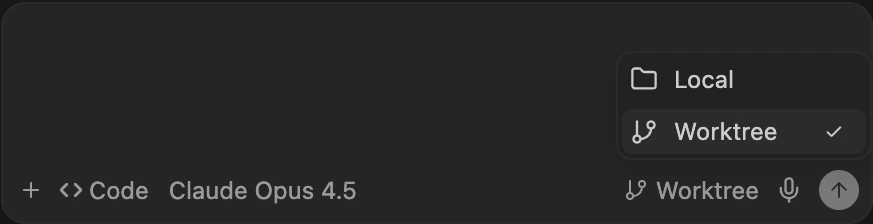
Currently, you can only switch to a worktree at the beginning of a Cascade session. Conversations cannot be moved to a different worktree once started.

Location
Worktrees are organized by repo name inside~/.windsurf/worktrees/<repo_name>.
Each worktree is given a unique random name.
To see a list of active worktrees, you can run git worktree list from within the repository directory.
Setup hook
Each worktree contains a copy of your repository files, but does not include.env files or other packages that aren’t version-controlled.
If you would like to include additional files or packages in each worktree, you can use the post_setup_worktree hook to copy them into the worktree directory.
The post_setup_worktree hook runs after each worktree is created and configured. It is executed inside the new worktree directory.
The $ROOT_WORKSPACE_PATH environment variable points to the original workspace path and can be used to access files or run commands relative to the original repository.
Example
Copy environment files and install dependencies when a new worktree is created. Config (in.windsurf/hooks.json):
hooks/setup_worktree.sh):
Cleanup
Devin Desktop automatically cleans up older worktrees when creating a new worktree to prevent excessive disk usage. Each workspace can have up to 20 worktrees. Worktrees are cleaned up based on when they were last accessed—the oldest ones are removed first. This cleanup happens on a per-workspace basis, ensuring that worktrees from different repositories remain independent of each other. Additionally, if you manually delete a Cascade conversation, Devin Desktop will automatically delete the associated worktree.Source Control Panel
By default, Devin Desktop does not show worktrees created by Cascade in the SCM Panel. You can setgit.showDevinWorktrees to true in your settings to override this and enable visualizing the worktrees in the SCM Panel.
The older
git.showWindsurfWorktrees setting is deprecated. It is still honored for existing configurations when git.showDevinWorktrees is not set, but use git.showDevinWorktrees going forward.