

What is Knowledge?
Just like onboarding a new engineer, onboarding Devin requires an initial investment in knowledge transfer. Knowledge is a collection of tips, advice, and instructions that Devin can reference in all sessions. You can continually add to Devin’s bank of Knowledge over time, and Devin will automatically recall relevant Knowledge as necessary. Use the Knowledge feature to share documentation, tips, custom internal libraries, and other materials that Devin may need.How do I create Knowledge?
Navigate to Settings → Resources → Knowledge, and click Create knowledge in the top right.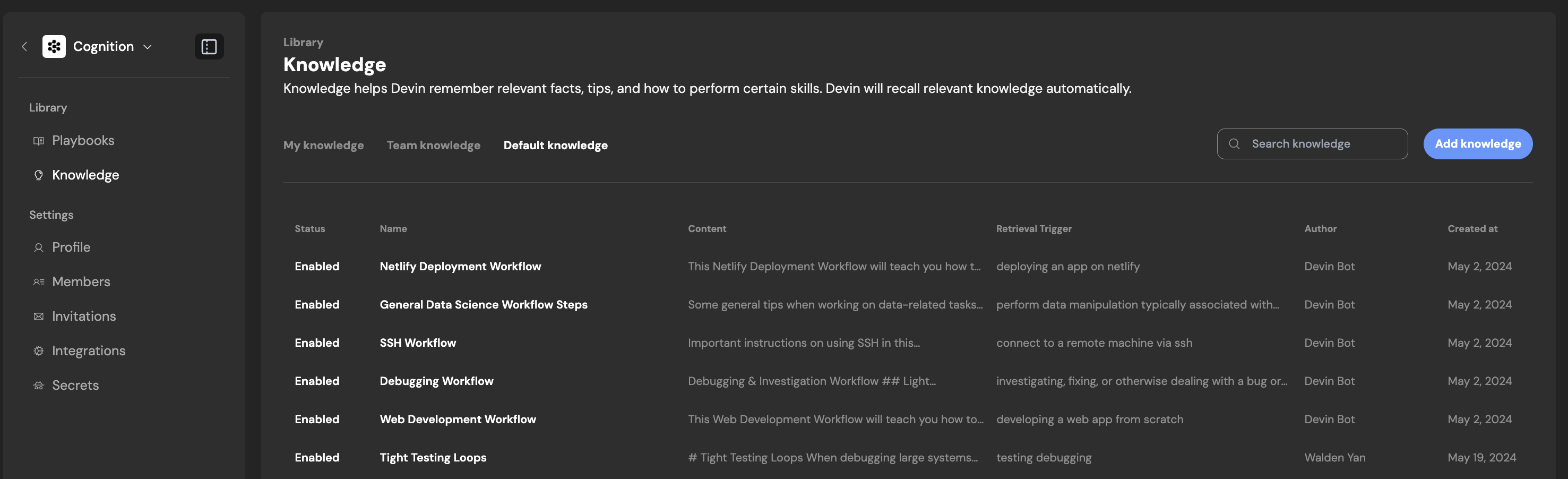
Macros
You can assign a macro to any knowledge item — a short identifier starting with! (e.g., !deploy-checklist). Macros let you quickly reference knowledge in your prompts by typing the macro name. Macros can only contain letters, numbers, and hyphens, and must be unique within your organization.
Enabling and disabling Knowledge
Each knowledge item can be individually enabled or disabled per user. Disabling a knowledge item prevents Devin from retrieving it in your sessions, without deleting it from the organization. This is useful when a knowledge item is temporarily irrelevant to your work but may be useful to teammates or in the future.Knowledge Suggestions
Devin will automatically suggest Knowledge to remember based on your feedback in chat. Edit the suggested Knowledge before saving, or dismiss the Knowledge if it’s not helpful. You can also request Devin to regenerate a Knowledge Suggestion based on your feedback. This can make it easier to iterate on suggested knowledge rather than manually editing. Devin can also suggest updates to existing knowledge items in addition to suggesting new knowledge items.What belongs in Knowledge?
We recommend including the aspects of your prompts or playbooks you find yourself repeating regularly. Examples include common bugs and their associated solutions, code conformance practices, deployment workflows, testing workflows, how to interact with proprietary tools, etc.Organizing Knowledge with Folders
You can organize knowledge items into folders for easier management. Folders support:- Nested hierarchy — Create sub-folders to build a structured knowledge tree.
- Bulk enable/disable — Toggle an entire folder on or off. When a folder is disabled, all knowledge items inside it are disabled for your sessions.
- Move items — Drag knowledge items between folders, or use the move action to reorganize.
- Auto-organize — Select multiple knowledge items and let Devin automatically sort them into logical folders.
Tips and tricks
- Create specific Knowledge that is targeted at one workflow or action. Devin will read the entire Knowledge contents, so keep it all relevant and up-to-date!
- Split up your Knowledge into smaller ones where possible. Devin is capable of accessing multiple Knowledge “items” at once.
- Make a habit of adding and updating Knowledge. These are shared across your organization, and will continually improve Devin for your team over time.
- Devin retrieves Knowledge when relevant, not all at once or all at the beginning. Be sure to make your retrieval trigger highly relevant to the contents.
- Use folders to group related knowledge (e.g., by project, team, or workflow) so you can quickly enable or disable sets of knowledge as your focus changes.
Organization and Enterprise Knowledge
For enterprise customers, the Knowledge page is split into separate tabs to help you manage knowledge at different scopes:- Organization Knowledge — Knowledge items scoped to your current organization. These are visible to all members of the organization and are the default scope for new knowledge items.
- Suggestions — AI-generated knowledge suggestions based on your session interactions (shown for non-primary organizations).
- Enterprise Knowledge — Knowledge items that apply across all organizations in your enterprise. Only visible when you belong to an enterprise account. Enterprise admins can create and manage enterprise-level knowledge from this tab.
Primary organization users see a single Enterprise Knowledge tab. Non-primary organization users with an enterprise account see all three tabs, with Organization Knowledge as the default. Non-primary organization users without an enterprise account see only Organization Knowledge and Suggestions.
Promoting Organization Knowledge to Enterprise
If an organization-level knowledge item proves useful enough to share across your entire enterprise, you can promote it directly from the knowledge editor. Open the item, then click Promote to Enterprise in the Details tab. The item is moved from organization scope to enterprise scope and becomes available to all organizations in your enterprise. Promotion requires enterprise knowledge management permissions, and is only available for user-created knowledge items in organizations that belong to an enterprise.Pinning Knowledge to Repos
You can choose whether Knowledge applies to no repo, a specific repo, or all repos:- Pinning to no repo: The Knowledge is only retrieved when Devin decides it’s relevant to your current context.
- Pinning to a specific repo: The Knowledge is always used whenever Devin is working in that specific repo.
- Pinning to all repos: The Knowledge automatically applies to every repo that Devin is working on in any session.