> ## Documentation Index
> Fetch the complete documentation index at: https://docs.devinenterprise.com/llms.txt
> Use this file to discover all available pages before exploring further.

# Entra ID SSO 设置

> 使用 Microsoft Entra ID（原 Azure AD）配置单点登录

<Note>点击任意图片放大查看。</Note>

<div id="required-information">
  ## 必要信息
</div>

要为 Devin 启用 Microsoft Entra ID 登录，我们需要收集以下信息：

* Client ID
* Tenant ID
* Client Secret
* Microsoft AD 域名
* 身份提供商域名 (即希望支持的所有公司邮箱域名)

<div id="setup-instructions">
  ## 设置说明
</div>

要获取上述所需信息,您需要在 Microsoft Entra ID 中注册应用程序。

<Note>
  应用程序注册应由你的组织中具有 **Application Administrator** 或 **Cloud Application Administrator** 角色的 Admin 创建。Devin 服务账户不需要任何特殊权限即可完成此设置。
</Note>

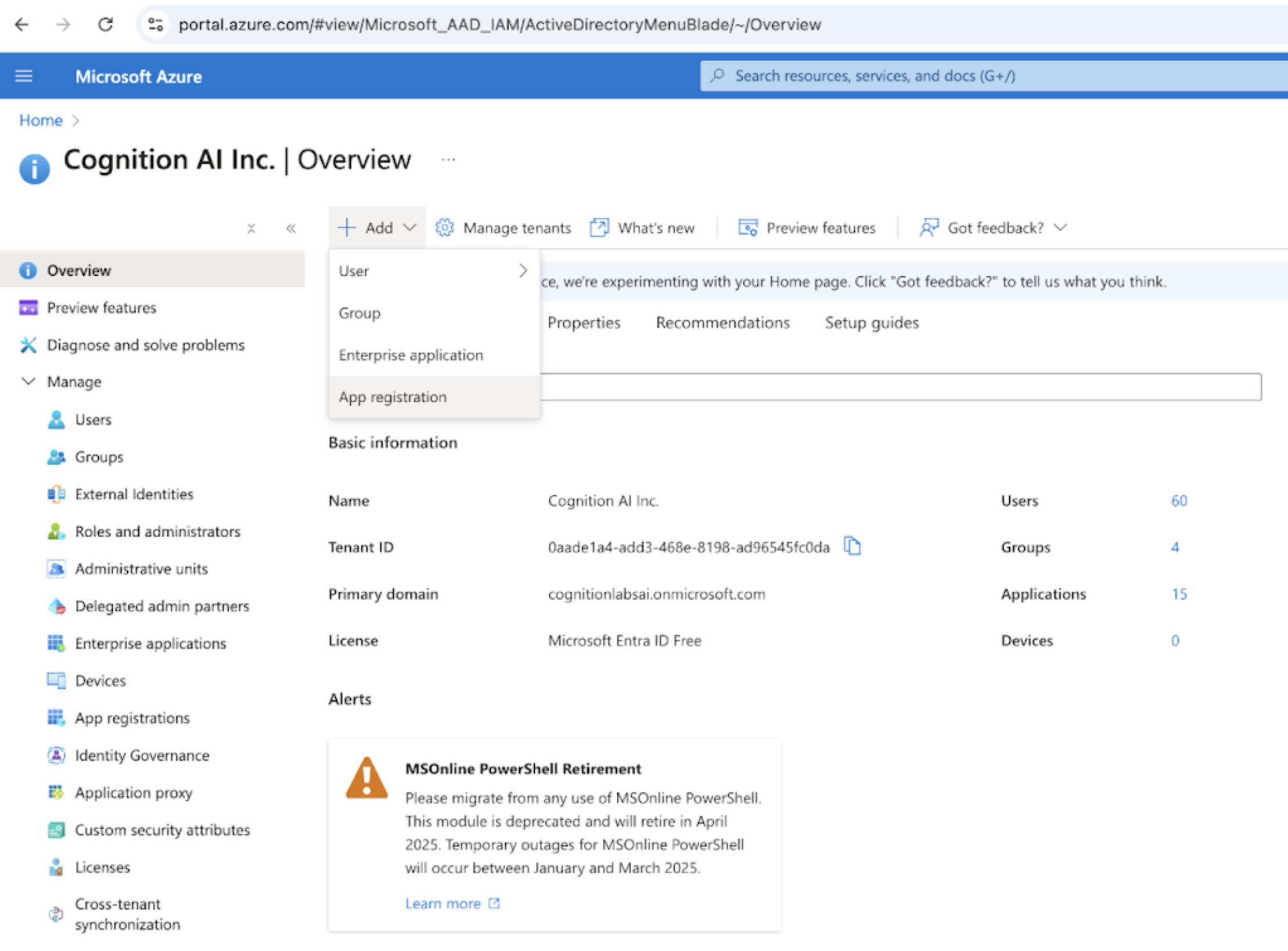
在 Microsoft Entra ID 门户中,点击"添加注册"

<img src="https://mintcdn.com/cognitionai-enterprise/DmYrokVm9aKGrUsO/images/azureAD1.png?fit=max&auto=format&n=DmYrokVm9aKGrUsO&q=85&s=d7234bf5a3c9fbba87144d2365222989" alt="Entra ID Registration" width="2218" height="1638" data-path="images/azureAD1.png" />

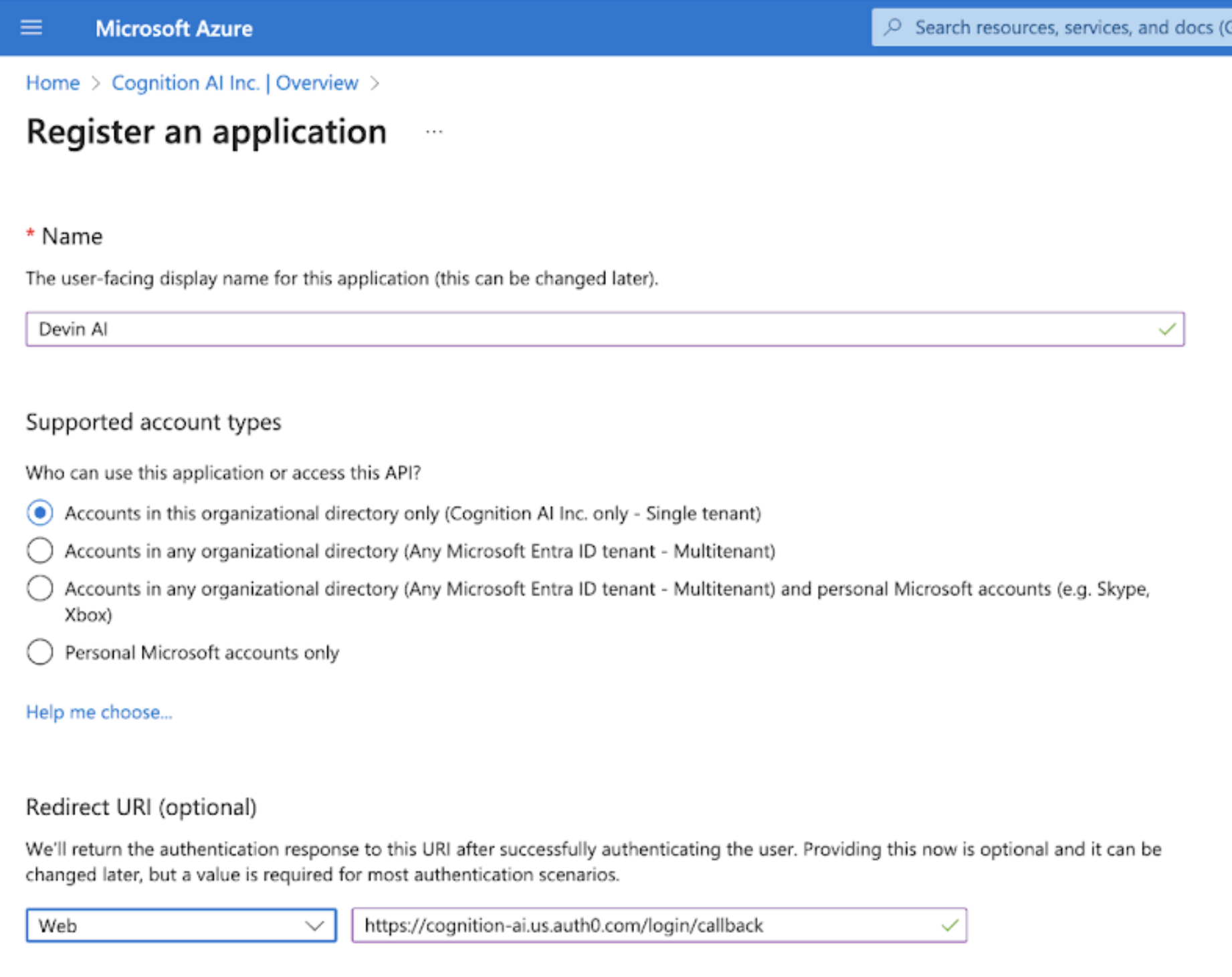
将注册名称设置为 Devin AI。选择"仅此组织目录中的帐户"。将重定向 URI 设置为 "[https://auth.devin.ai/login/callback\&quot;(这是唯一需要的重定向](https://auth.devin.ai/login/callback\&quot;\(这是唯一需要的重定向) URI)

<img src="https://mintcdn.com/cognitionai-enterprise/DmYrokVm9aKGrUsO/images/azureAD2.png?fit=max&auto=format&n=DmYrokVm9aKGrUsO&q=85&s=285192fc843a9cab079596fa8d926c71" alt="Entra ID App Settings" width="1842" height="1460" data-path="images/azureAD2.png" />

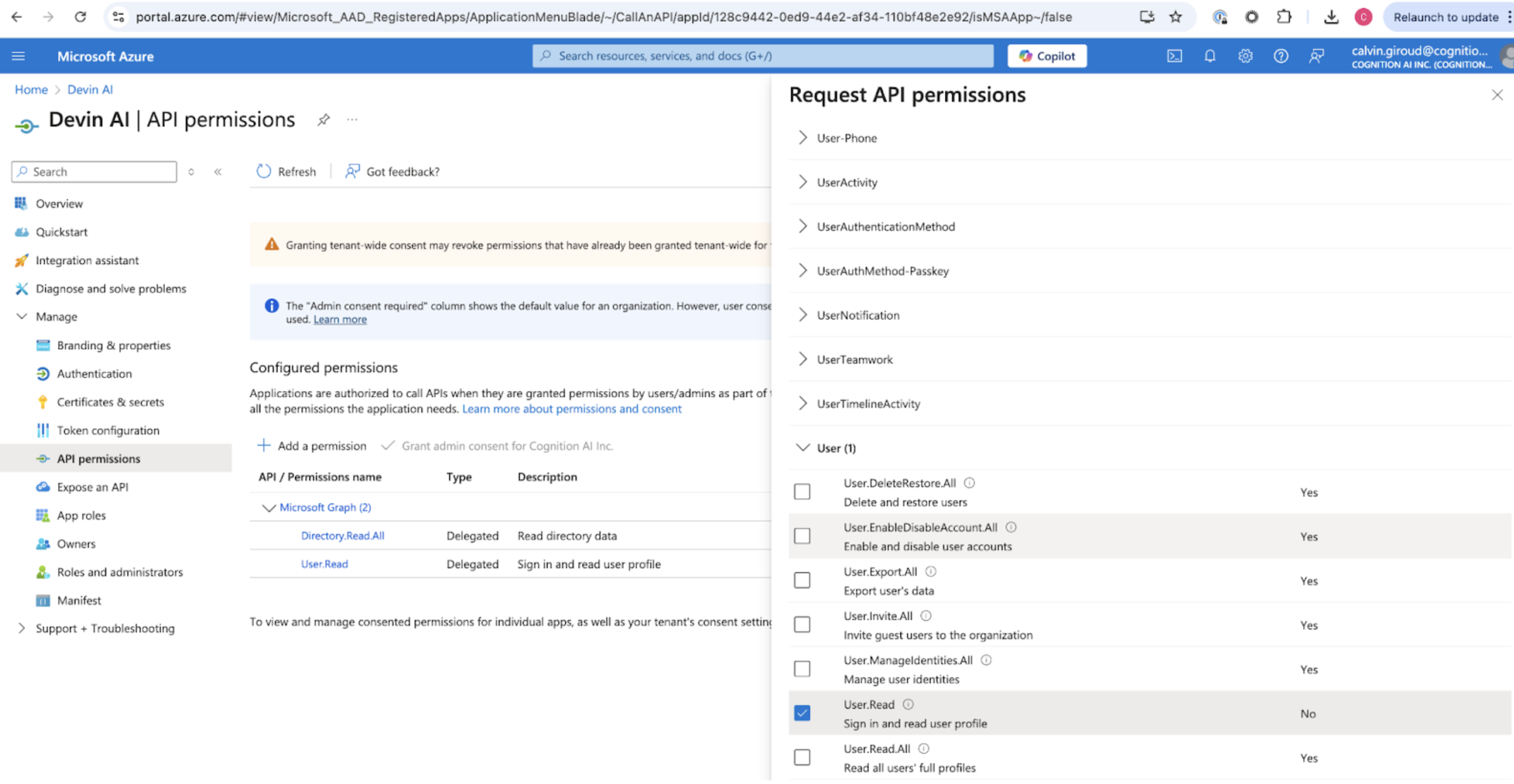
通过选择"API 权限"和"添加权限"为 Microsoft Graph API 添加 User.Read 和 Directory.Read.All 权限。
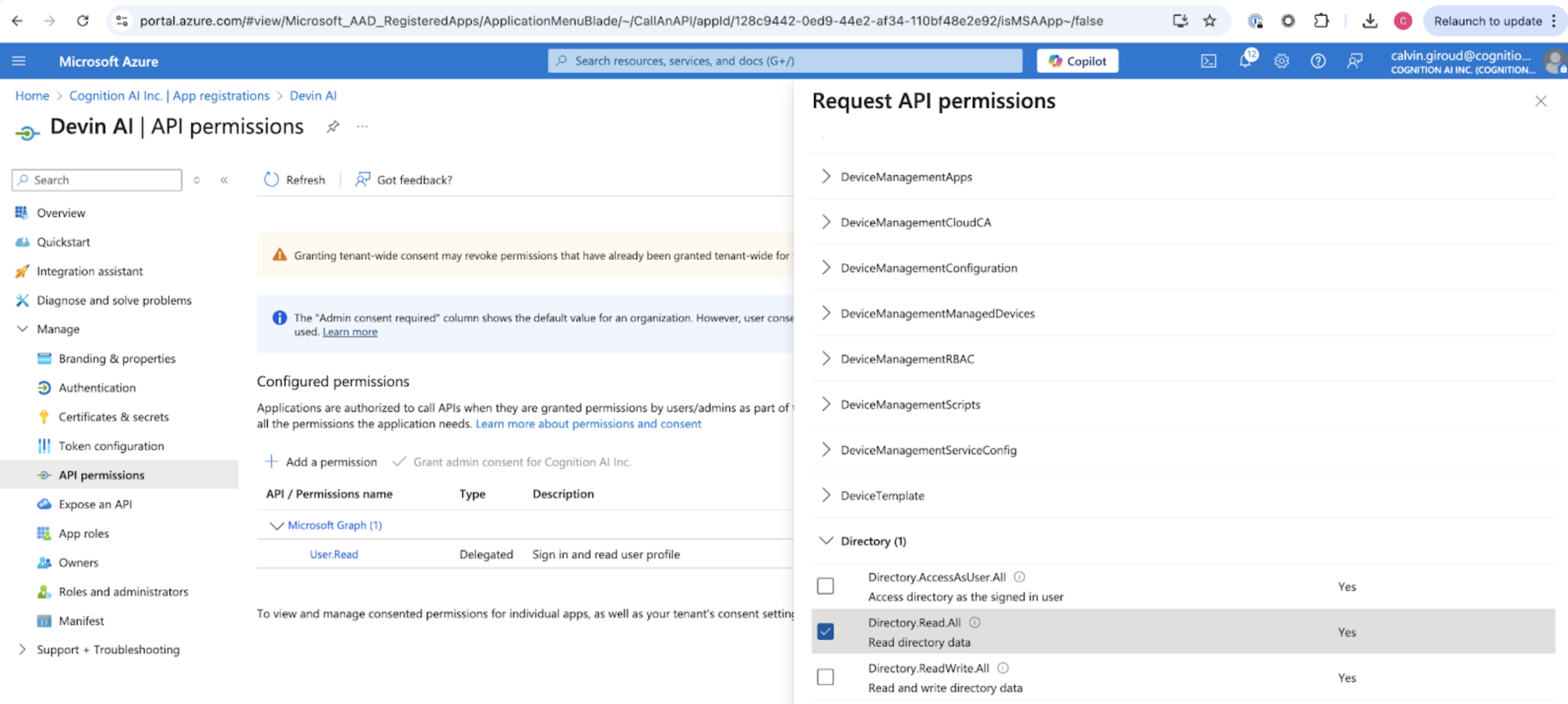
<img src="https://mintcdn.com/cognitionai-enterprise/DmYrokVm9aKGrUsO/images/azureAD5.png?fit=max&auto=format&n=DmYrokVm9aKGrUsO&q=85&s=31525563b21a20158bfe8f6568819f25" alt="Entra ID API Permissions" width="2798" height="1256" data-path="images/azureAD5.png" />

<img src="https://mintcdn.com/cognitionai-enterprise/DmYrokVm9aKGrUsO/images/azureAD6.png?fit=max&auto=format&n=DmYrokVm9aKGrUsO&q=85&s=94c7f690b37dc19501b5af6dac7a146c" alt="Entra ID Graph Permissions" width="2780" height="1440" data-path="images/azureAD6.png" />

<div id="collecting-the-required-values">
  ## 收集所需的数值
</div>

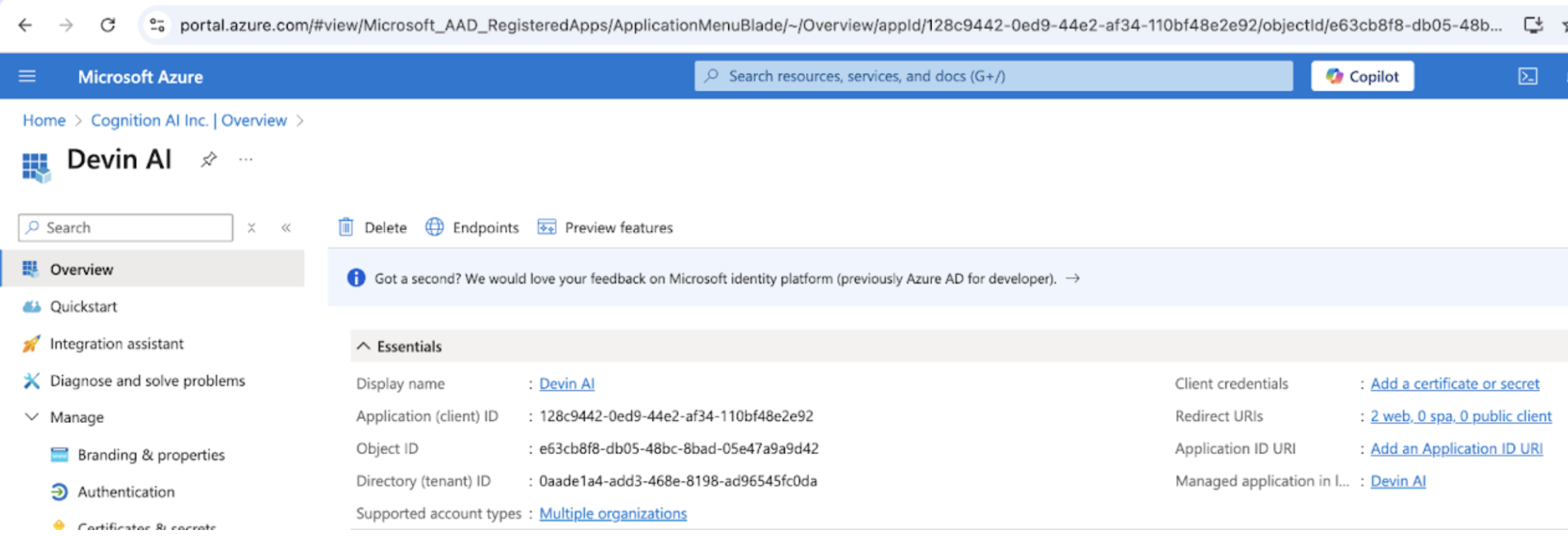
你可以在 **Overview** 页面中获取 Client ID 和 Tenant ID。

<img src="https://mintcdn.com/cognitionai-enterprise/DmYrokVm9aKGrUsO/images/azureAD7.png?fit=max&auto=format&n=DmYrokVm9aKGrUsO&q=85&s=66f787fc382bf359a099a9af5a94a558" alt="Entra ID Overview Page" width="2360" height="806" data-path="images/azureAD7.png" />

Microsoft AD Domain 可以通过进入 **Manifest** 页面并查找 `publisherDomain` 来获取。
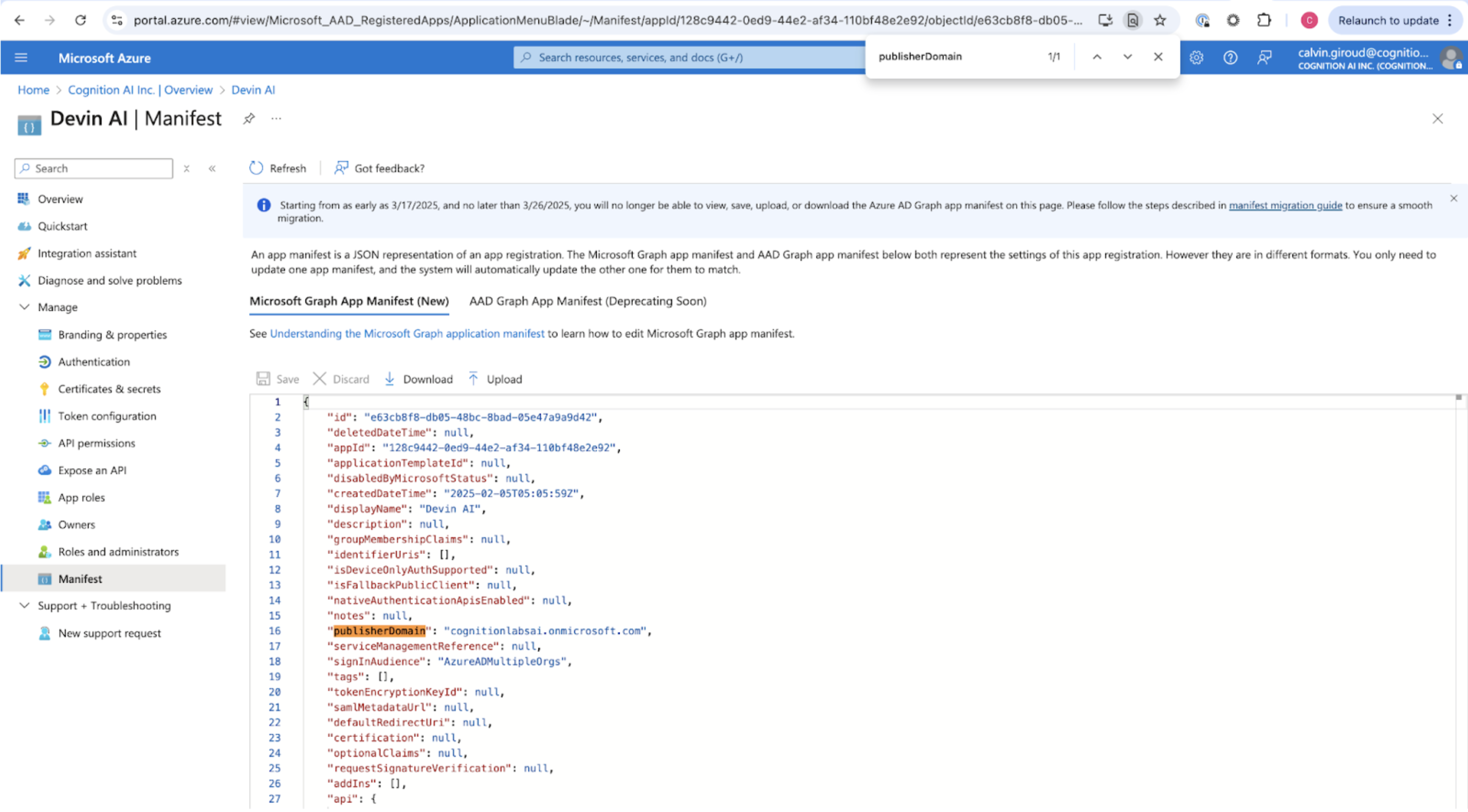
<img src="https://mintcdn.com/cognitionai-enterprise/DmYrokVm9aKGrUsO/images/azureAD8.png?fit=max&auto=format&n=DmYrokVm9aKGrUsO&q=85&s=00103842106a2ee761dc52ea09a6c60a" alt="Entra ID Manifest" width="2994" height="1656" data-path="images/azureAD8.png" />

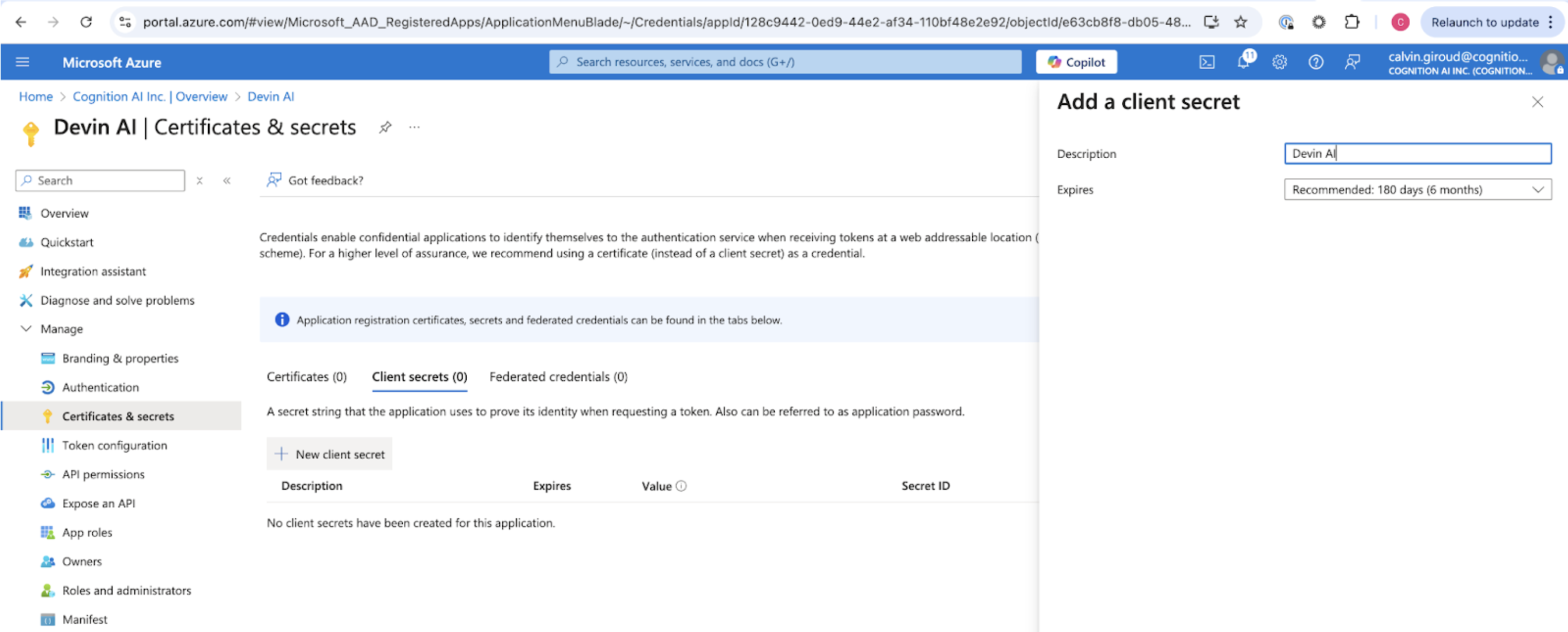
在 **Certificates & secrets** 页面添加一个 client secret。选择 **New client secret**，并复制该 secret 的 VALUE (而不是 secret ID) ，作为 Client Secret 使用。

<img src="https://mintcdn.com/cognitionai-enterprise/DmYrokVm9aKGrUsO/images/azureAD9.png?fit=max&auto=format&n=DmYrokVm9aKGrUsO&q=85&s=d7071ba8ecc5f574ea02a40e1821f8ec" alt="Entra ID Client Secret" width="2990" height="1206" data-path="images/azureAD9.png" />

<div id="send-to-cognition">
  ## 发送给 Cognition
</div>

将以下信息发送给 Cognition：

* Client ID
* Tenant ID
* Client Secret
* Microsoft AD 域名
* 身份提供商域名（即你希望支持的所有公司邮箱域名）