> ## Documentation Index
> Fetch the complete documentation index at: https://docs.devinenterprise.com/llms.txt
> Use this file to discover all available pages before exploring further.
# 代码透镜
> 使用 Devin Desktop 的代码透镜,可直接在编辑器中对函数和类快速进行解释、重构和添加 Docstring 操作。
## 解释、重构和添加 Docstring
在文本编辑器顶部,Devin Desktop 会在函数和类上显示 *代码透镜*。
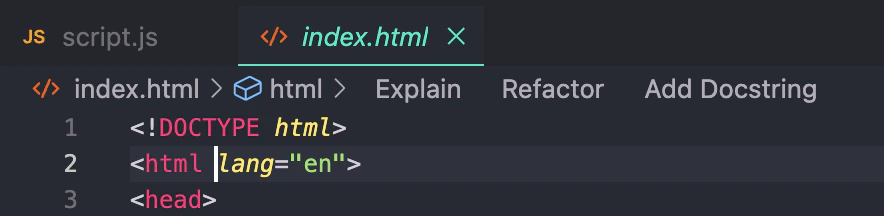 `Explain` 代码透镜会调用 Cascade,直接解释函数或类的作用以及它的工作原理。
`Refactor` 和 `Docstring` 代码透镜则会调用 Command。
* 如果你点击 `Refactor`,Devin Desktop 会显示一个下拉菜单,其中包含可选的预填充指示供你选择。你也可以自己编写指示。这相当于选中该函数并调用 Command。
* 如果你点击 `Docstring`,Devin Desktop 会在函数定义上方为你生成 docstring。
(在 Python 中,docstring 会正确生成在函数定义的 *下方*。)
`Explain` 代码透镜会调用 Cascade,直接解释函数或类的作用以及它的工作原理。
`Refactor` 和 `Docstring` 代码透镜则会调用 Command。
* 如果你点击 `Refactor`,Devin Desktop 会显示一个下拉菜单,其中包含可选的预填充指示供你选择。你也可以自己编写指示。这相当于选中该函数并调用 Command。
* 如果你点击 `Docstring`,Devin Desktop 会在函数定义上方为你生成 docstring。
(在 Python 中,docstring 会正确生成在函数定义的 *下方*。)