> ## Documentation Index
> Fetch the complete documentation index at: https://docs.devinenterprise.com/llms.txt
> Use this file to discover all available pages before exploring further.
# Slash Commands
> Use slash commands to quickly insert predefined text prompt templates and streamline your workflow with Devin
## Overview
Slash commands are shortcuts that expand into predefined text prompts when used in Devin's chat interface. They help you quickly start common workflows without typing out full instructions each time.
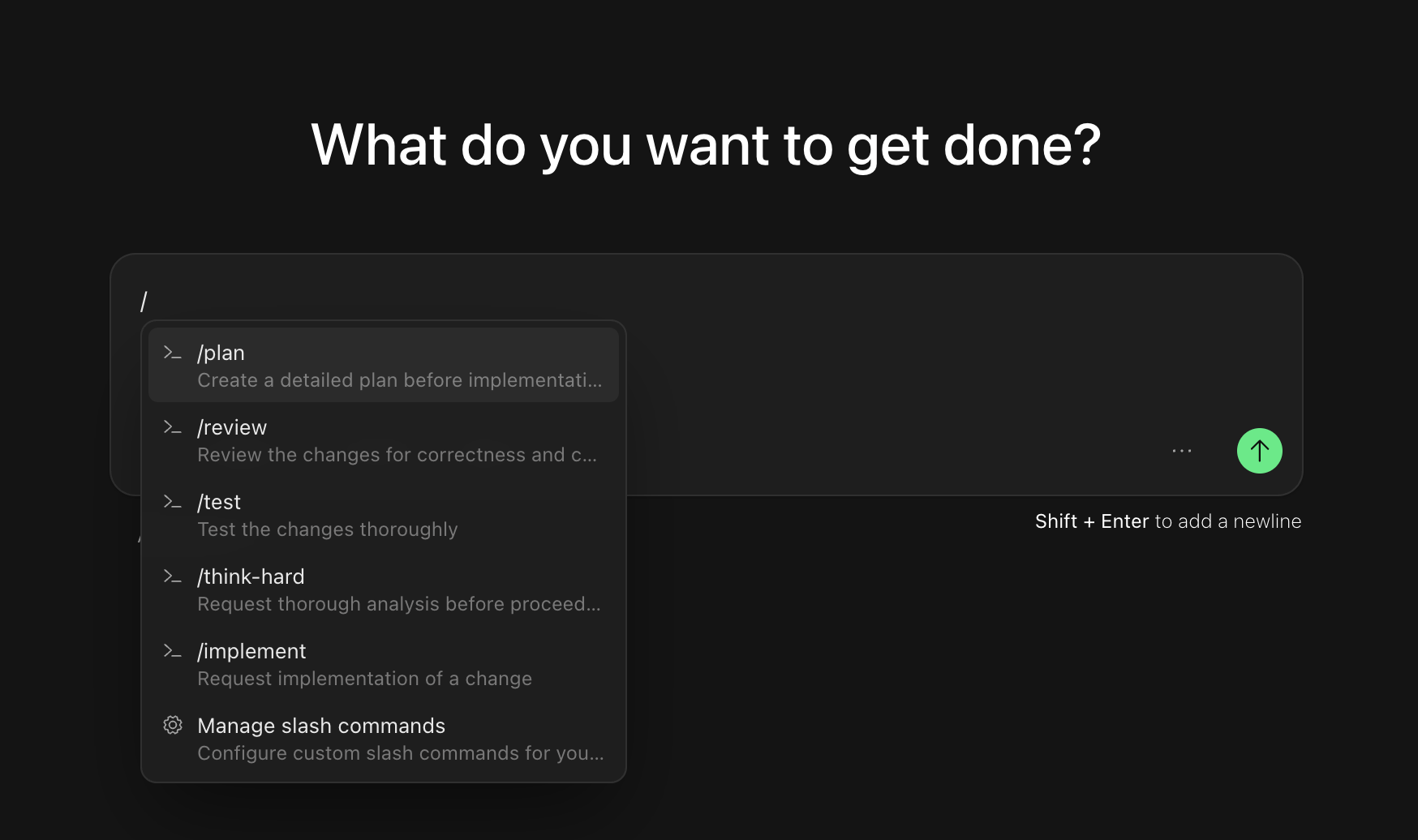 The interface includes visual badges and keyboard shortcut hints to make discovering and using slash commands easier.
## Built-in Slash Commands
Devin comes with several built-in slash commands designed for common development workflows:
### /plan
Use this command when you want Devin to help you scope and plan a task before implementation. The planning template guides Devin to analyze your codebase, identify relevant files, and propose a detailed approach.
### /review
Use this command to set up a thorough code review workflow where Devin examines code changes and provides feedback on code quality, best practices, and potential bugs.
### /test
Use this command when you want Devin to help create tests, run existing test suites, or analyze test coverage for your codebase.
### /think-hard
Use this command when you want Devin to think more carefully and thoroughly before providing a solution for complex problems.
### /implement
Use this command when you have a specific feature or change you want Devin to implement in your codebase.
## How Slash Commands Work
When you start typing `/` in Devin's chat input, a menu appears showing available slash commands. You can:
1. Continue typing to filter the list of commands
2. Use arrow keys to navigate through options
3. Click on a command or press Enter to select it
Once selected, the slash command appears as a chip in the input field. An example for `/plan` will look like the below:
/plan ×
Clicking on the chip will expand it into the full prompt template. You can then customize the template with your specific requirements before sending it to Devin.
## Custom Slash Commands
Organizations can create custom slash commands tailored to their team's unique workflows. For example, you might create:
* A `/deploy` command with your team's deployment checklist
* A `/security-review` command with your organization's security review guidelines
* A `/onboard` command to help new team members understand your codebase
### Managing Custom Commands
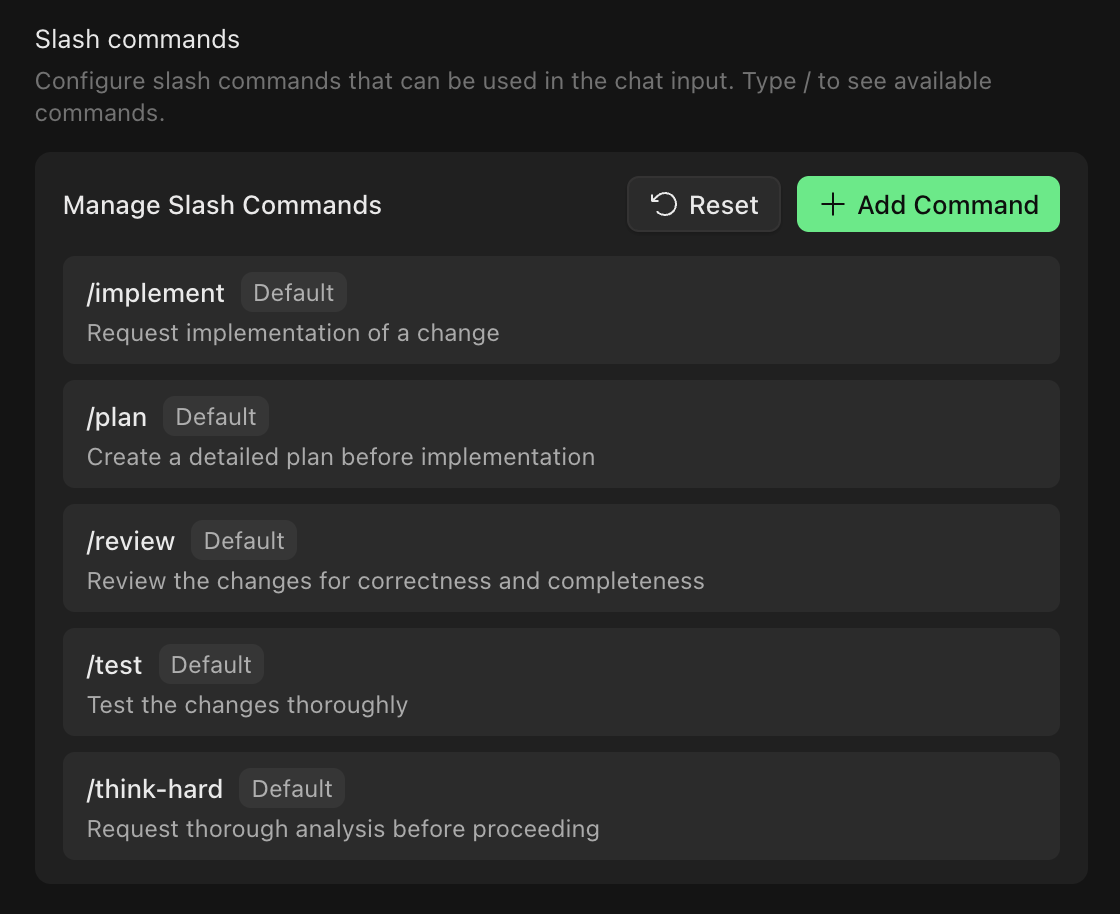
Organization administrators can manage slash commands through [Settings > Customization](https://app.devin.ai/customization). This interface allows you to:
* View all available commands (both default and custom)
* Create new custom commands with specific prompt templates
* Edit existing custom command templates
* Delete custom commands
* Restore default commands to their original templates
Creating, editing, and deleting slash commands requires organization admin permissions (`ManageOrgSettings`). All organization members can use both default and custom commands.
The interface includes visual badges and keyboard shortcut hints to make discovering and using slash commands easier.
## Built-in Slash Commands
Devin comes with several built-in slash commands designed for common development workflows:
### /plan
Use this command when you want Devin to help you scope and plan a task before implementation. The planning template guides Devin to analyze your codebase, identify relevant files, and propose a detailed approach.
### /review
Use this command to set up a thorough code review workflow where Devin examines code changes and provides feedback on code quality, best practices, and potential bugs.
### /test
Use this command when you want Devin to help create tests, run existing test suites, or analyze test coverage for your codebase.
### /think-hard
Use this command when you want Devin to think more carefully and thoroughly before providing a solution for complex problems.
### /implement
Use this command when you have a specific feature or change you want Devin to implement in your codebase.
## How Slash Commands Work
When you start typing `/` in Devin's chat input, a menu appears showing available slash commands. You can:
1. Continue typing to filter the list of commands
2. Use arrow keys to navigate through options
3. Click on a command or press Enter to select it
Once selected, the slash command appears as a chip in the input field. An example for `/plan` will look like the below:
/plan ×
Clicking on the chip will expand it into the full prompt template. You can then customize the template with your specific requirements before sending it to Devin.
## Custom Slash Commands
Organizations can create custom slash commands tailored to their team's unique workflows. For example, you might create:
* A `/deploy` command with your team's deployment checklist
* A `/security-review` command with your organization's security review guidelines
* A `/onboard` command to help new team members understand your codebase
### Managing Custom Commands
Organization administrators can manage slash commands through [Settings > Customization](https://app.devin.ai/customization). This interface allows you to:
* View all available commands (both default and custom)
* Create new custom commands with specific prompt templates
* Edit existing custom command templates
* Delete custom commands
* Restore default commands to their original templates
Creating, editing, and deleting slash commands requires organization admin permissions (`ManageOrgSettings`). All organization members can use both default and custom commands.