> ## Documentation Index
> Fetch the complete documentation index at: https://docs.devinenterprise.com/llms.txt
> Use this file to discover all available pages before exploring further.
# VPN Configuration
> Configure VPN access for Devin to connect to your internal network
Devin operates in its own VM workspace and sometimes needs to access resources within your internal network (e.g., internal package registry, staging services, self-hosted services). Like your developers, Devin can use a client VPN to connect to your internal network.
## Prerequisites Checklist
Before setting up VPN access, verify the following:
1. **Public Access Verification**
* Confirm these services are **not** accessible via the public internet.
* For cloud-hosted services (e.g., Gitlab Cloud Package Registry, JFrog Artifactory Cloud), an access token is typically sufficient.
2. **Authentication Method:**
Using a service account to authenticate is recommended. Credentials can be securely stored via Devin's [Secrets](/product-guides/secrets) functionality.
## Setting up OpenVPN
OpenVPN comes pre-installed in Devin's workspace. To configure:
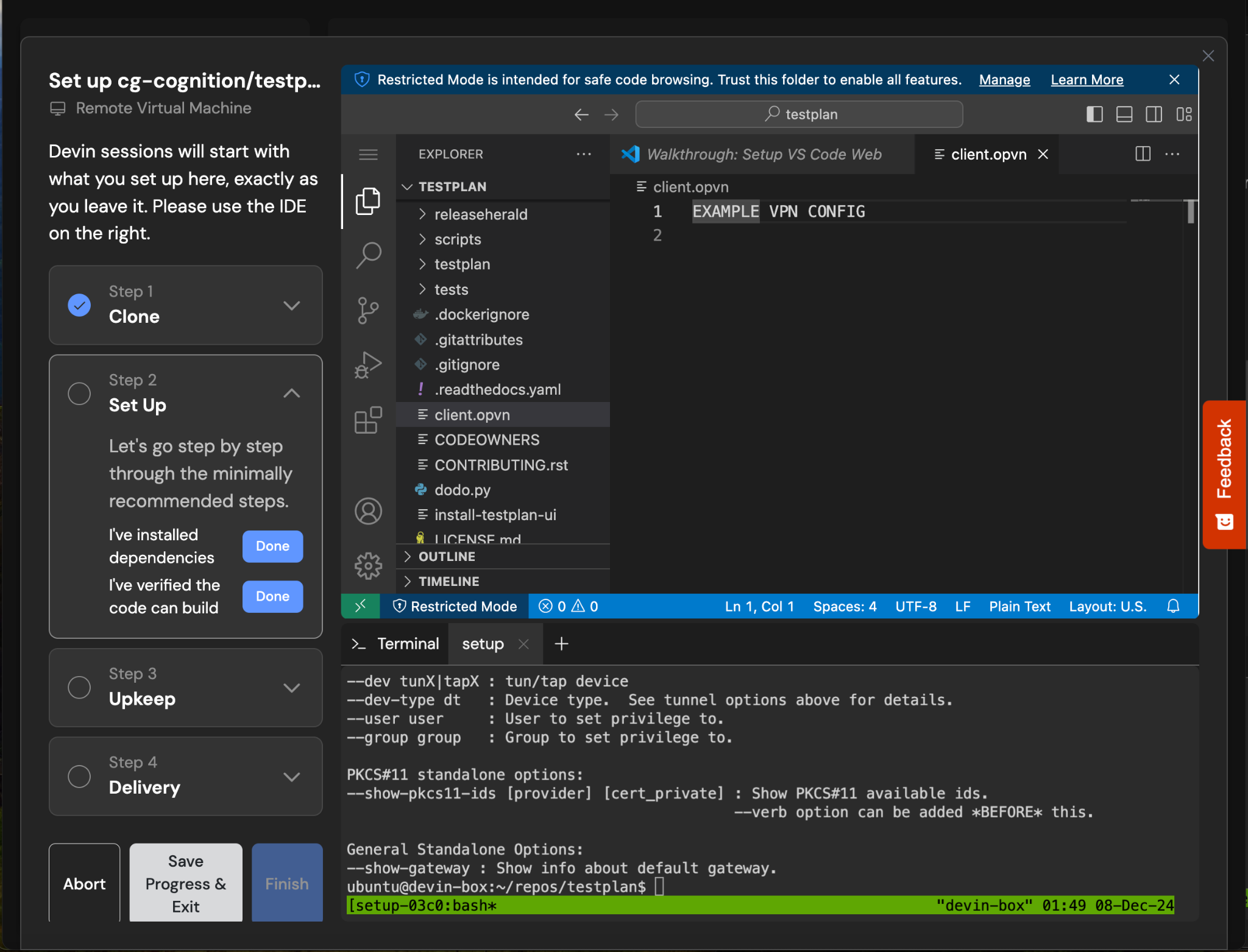
1. Upload your `config.ovpn` configuration file to Devin's workspace by dragging and dropping it into the VSCode instance
 2. Set up OpenVPN as a system service by creating the file `/etc/systemd/system/openvpn.service`:
```
[Unit]
Description=OpenVPN Client Service
After=network.target
[Service]
ExecStart=/usr/sbin/openvpn --config /path/to/config.ovpn
Restart=always
[Install]
WantedBy=multi-user.target
```
Then reload systemd, enable and start the service.
```bash theme={null}
sudo systemctl daemon-reload
sudo systemctl enable openvpn
sudo systemctl start openvpn
```
This ensures the VPN connection is managed by the system and automatically restarts if it fails.
## Alternative VPN Clients
If your organization uses a different VPN solution:
### Publicly Available VPN Clients
For clients like Fortinet that can be installed via a package manager:
2. Set up OpenVPN as a system service by creating the file `/etc/systemd/system/openvpn.service`:
```
[Unit]
Description=OpenVPN Client Service
After=network.target
[Service]
ExecStart=/usr/sbin/openvpn --config /path/to/config.ovpn
Restart=always
[Install]
WantedBy=multi-user.target
```
Then reload systemd, enable and start the service.
```bash theme={null}
sudo systemctl daemon-reload
sudo systemctl enable openvpn
sudo systemctl start openvpn
```
This ensures the VPN connection is managed by the system and automatically restarts if it fails.
## Alternative VPN Clients
If your organization uses a different VPN solution:
### Publicly Available VPN Clients
For clients like Fortinet that can be installed via a package manager:
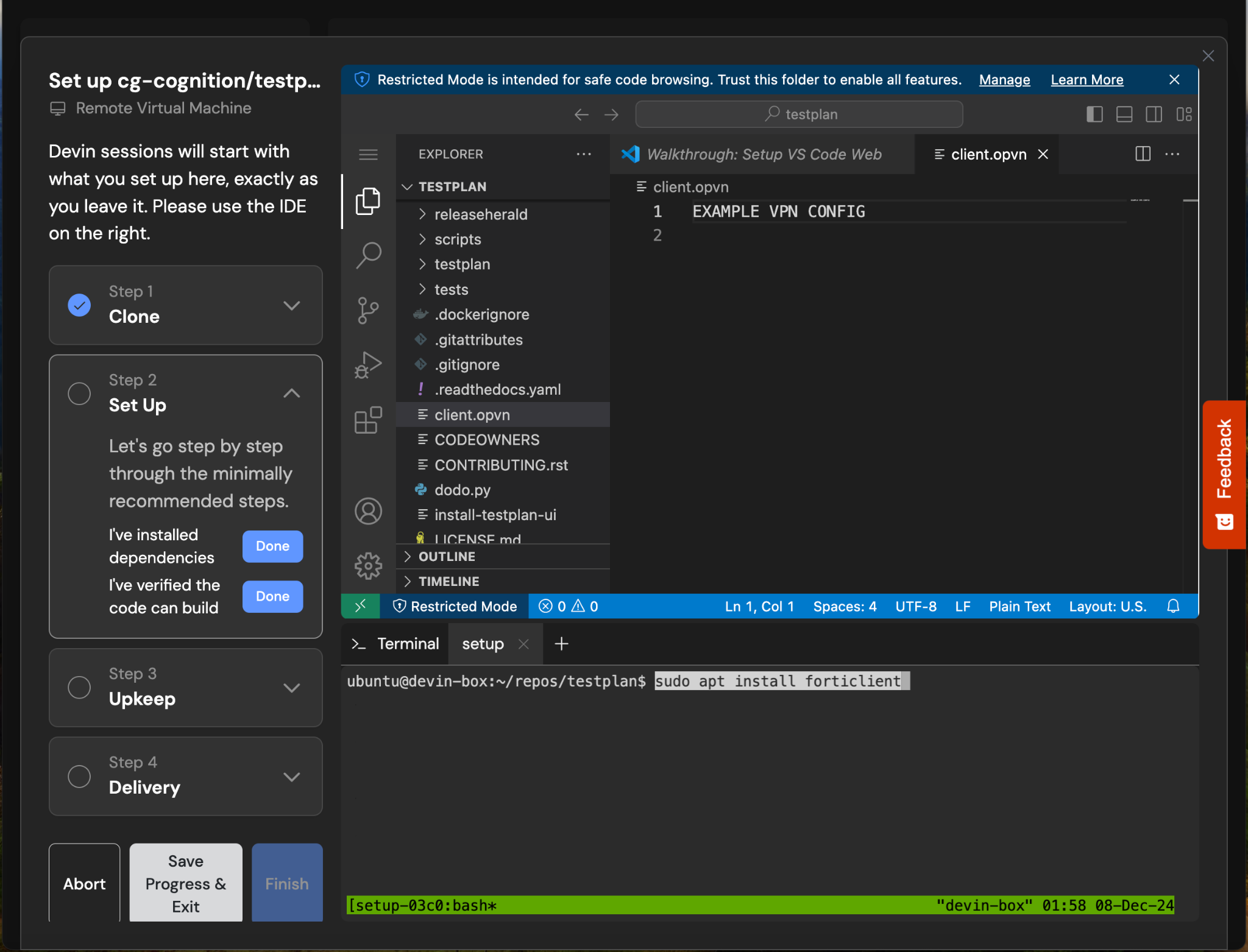 1. Install the client during setup using the appropriate package manager commands:
```bash theme={null}
sudo apt install forticlient
```
2. Configure the startup command to establish connection
### Private VPN Clients
For clients like Palo Alto GlobalProtect that require a binary installation:
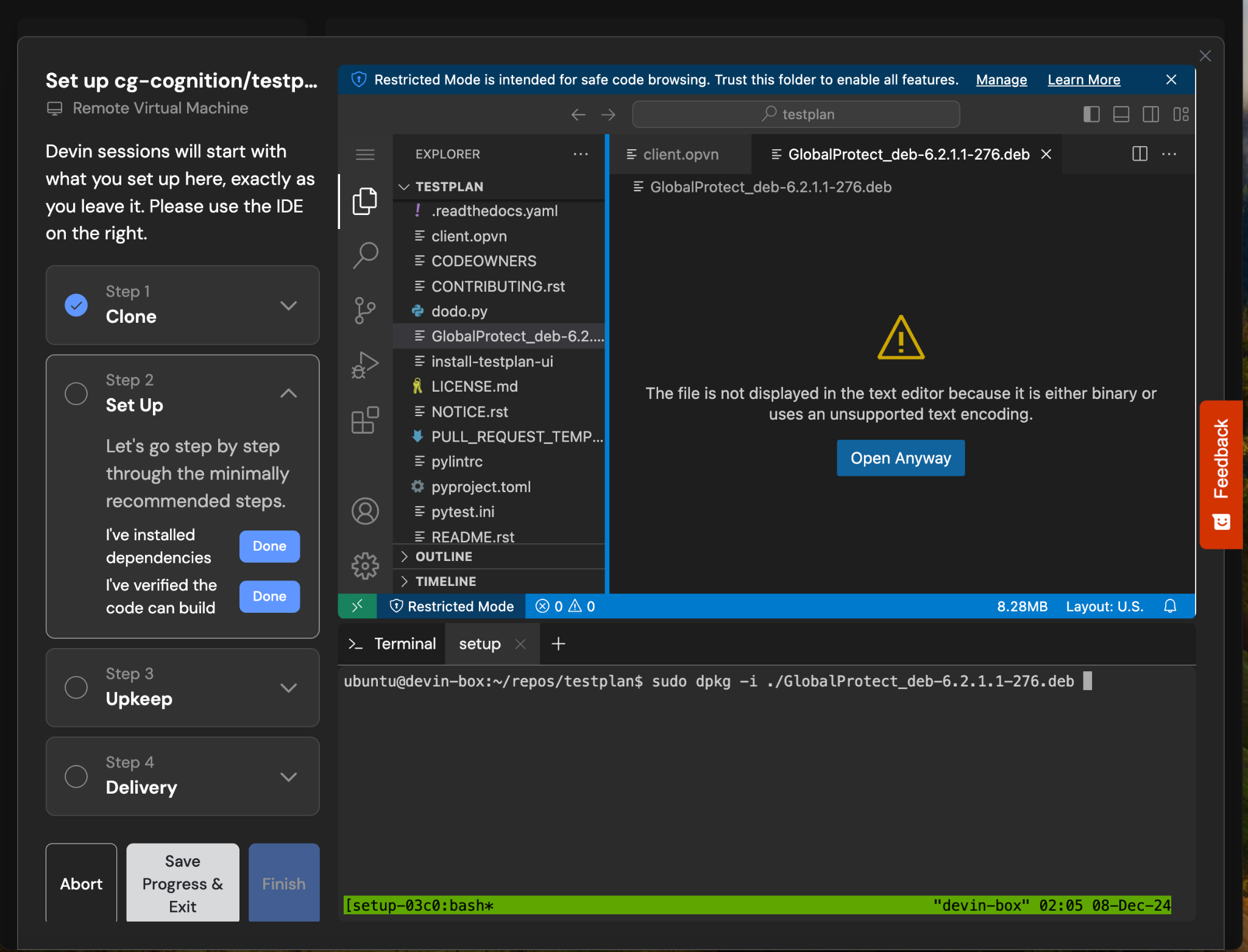
1. Upload the client binary and certificate to Devin's workspace by dragging and dropping it into the VSCode instance
2. Install using:
```bash theme={null}
sudo dpkg -i /path/to/GlobalProtect_deb.deb
```
1. Install the client during setup using the appropriate package manager commands:
```bash theme={null}
sudo apt install forticlient
```
2. Configure the startup command to establish connection
### Private VPN Clients
For clients like Palo Alto GlobalProtect that require a binary installation:
1. Upload the client binary and certificate to Devin's workspace by dragging and dropping it into the VSCode instance
2. Install using:
```bash theme={null}
sudo dpkg -i /path/to/GlobalProtect_deb.deb
```
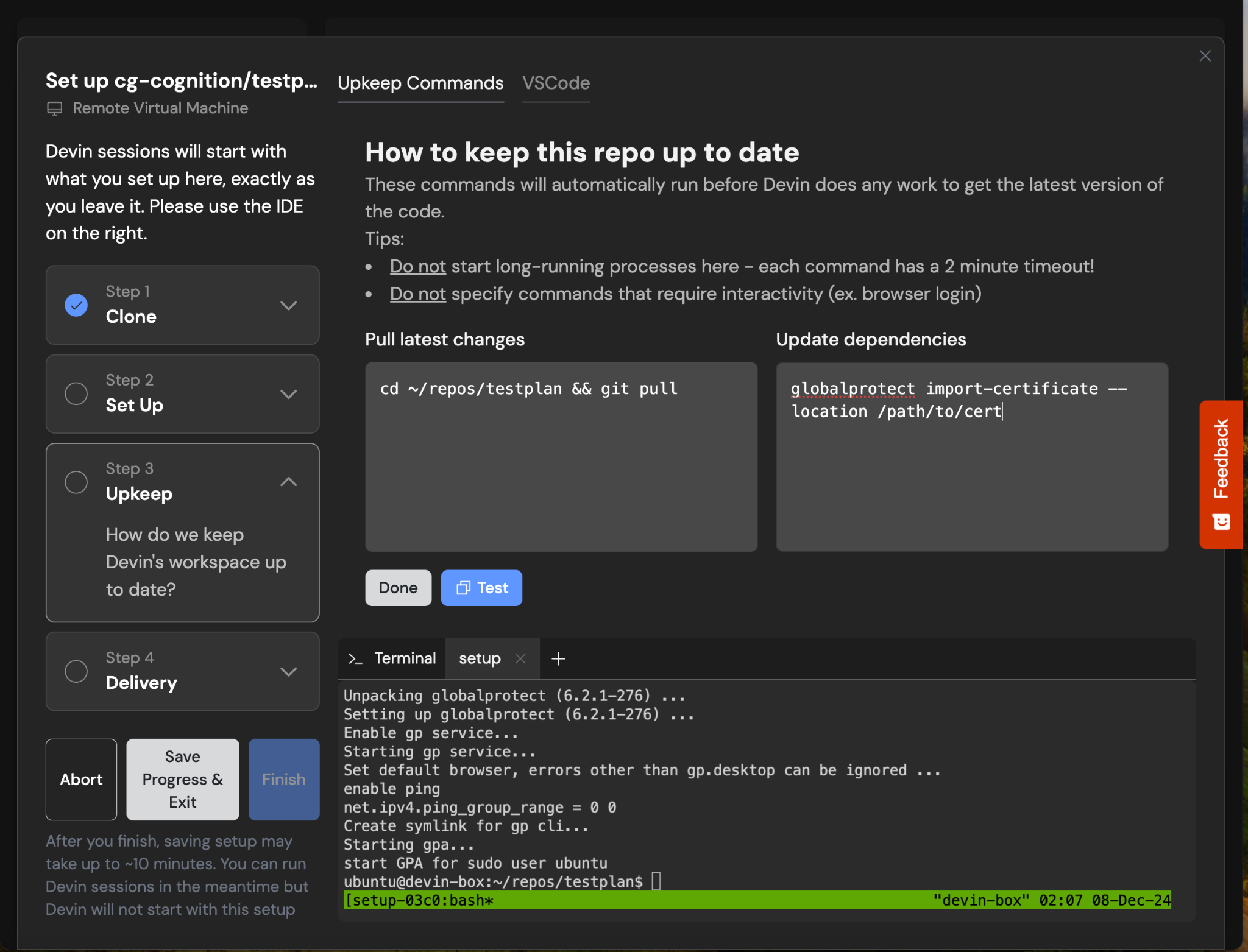
 3. Configure the startup command:
```bash theme={null}
globalprotect import-certificate --location /path/to/cert
```
3. Configure the startup command:
```bash theme={null}
globalprotect import-certificate --location /path/to/cert
```