> ## Documentation Index
> Fetch the complete documentation index at: https://docs.devinenterprise.com/llms.txt
> Use this file to discover all available pages before exploring further.
# Okta SSO Setup
> Configure Single Sign-On with Okta
To set up Okta as a log-in option for your Devin users, you can share this document with your Okta administrator and/or a member of your IT team.
## Create a new application in Okta
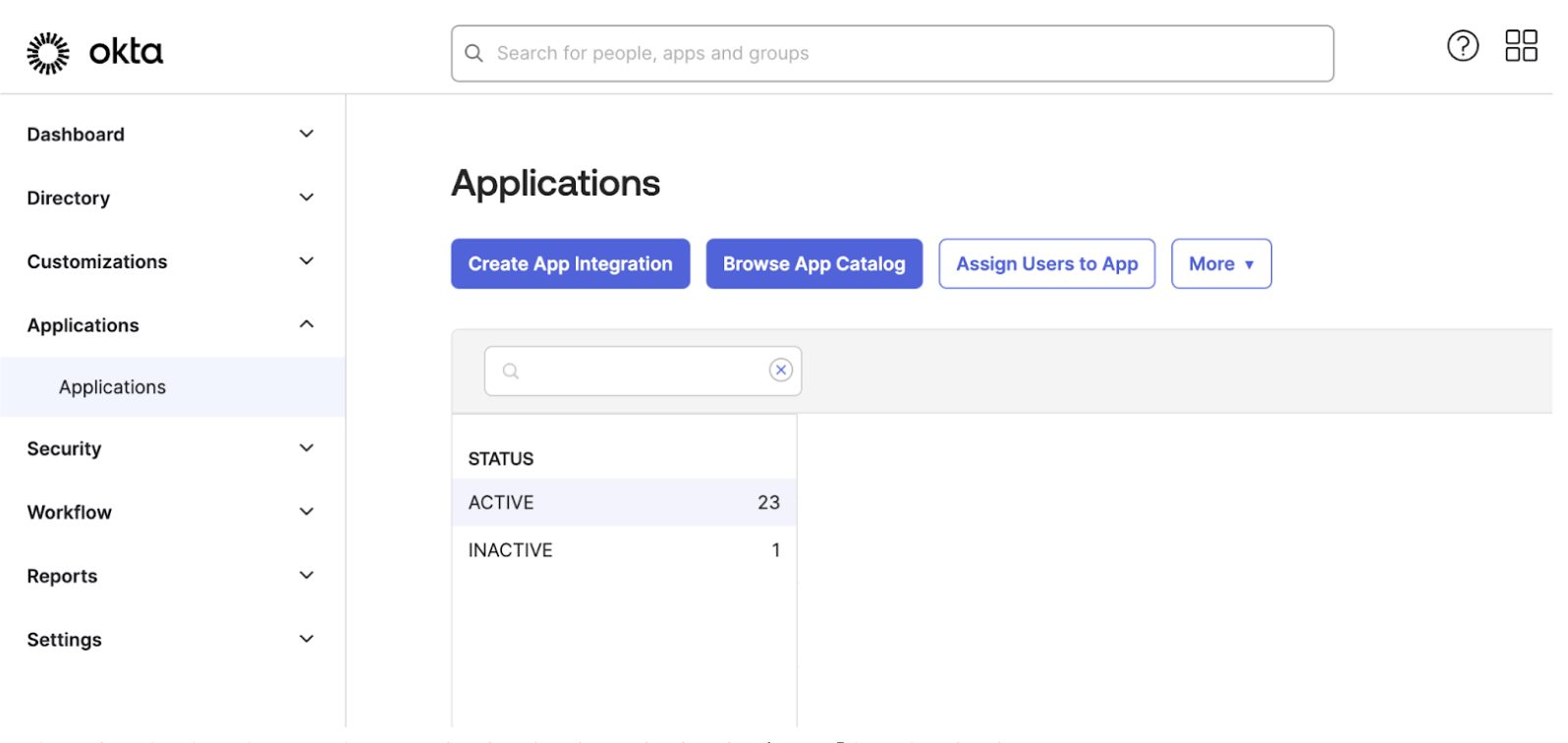
1. In your OKTA Admin Panel go to Applications > Create App Integration
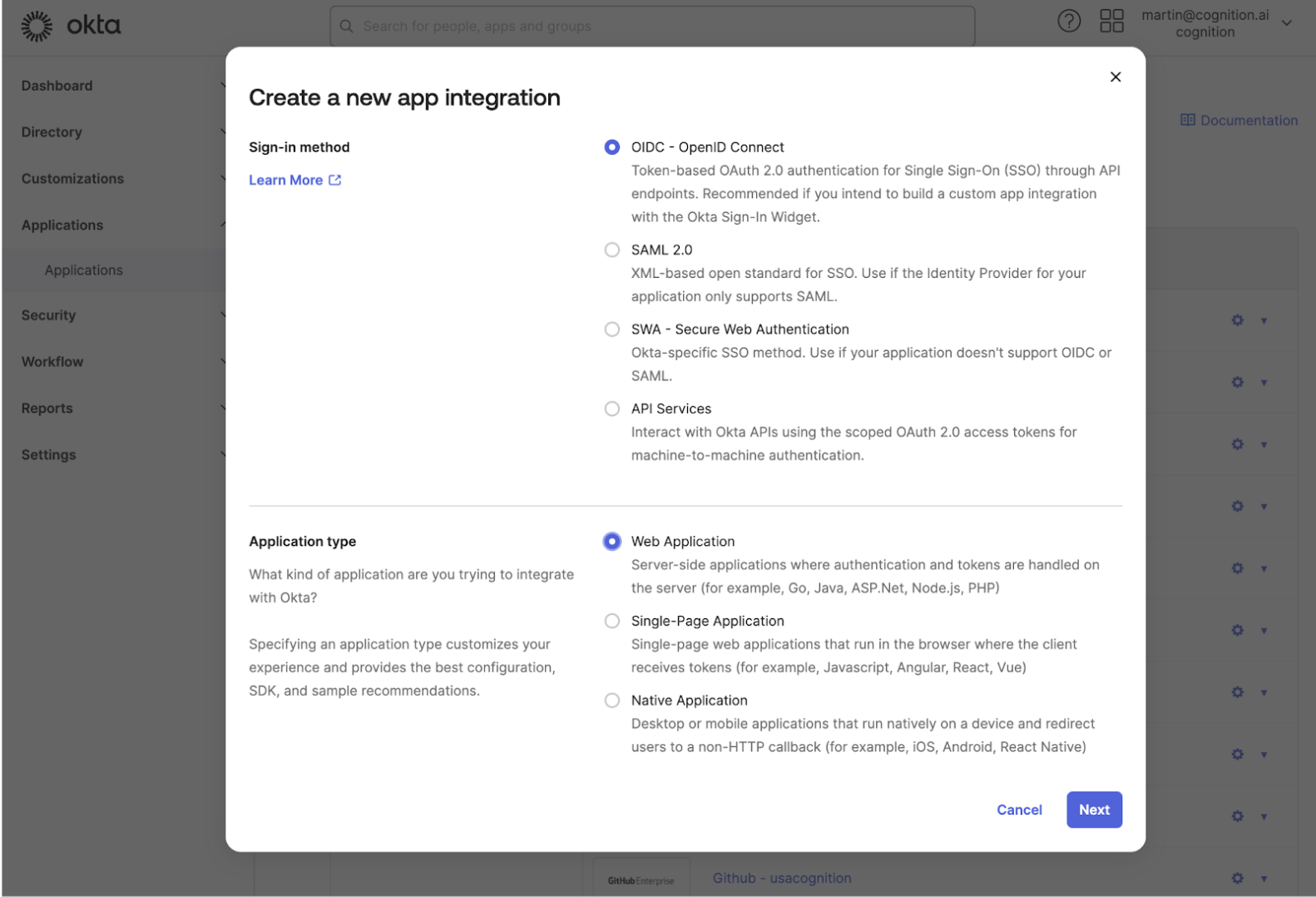
 2. Select `OIDC - OpenID Connect` for the Sign-in method and `Web Application` for the `Application Type`
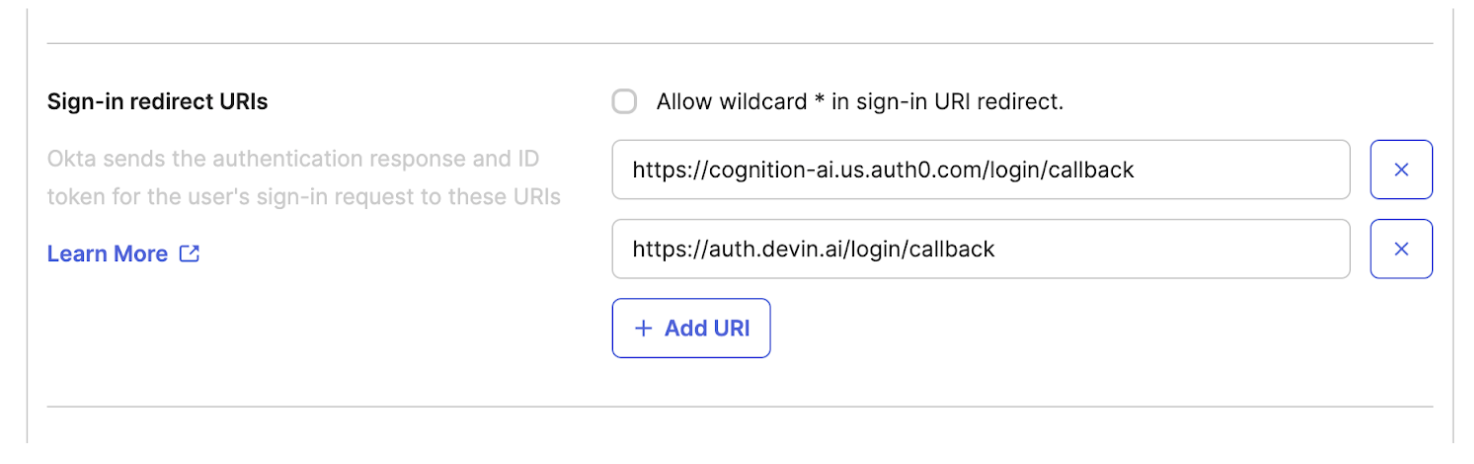
 3. For `Sign-in redirect URIs` enter the following values
[https://auth.devin.ai/login/callback](https://auth.devin.ai/login/callback)
3. For `Sign-in redirect URIs` enter the following values
[https://auth.devin.ai/login/callback](https://auth.devin.ai/login/callback)
 4. Leave Sign-out redirect URIs empty
## Share your application credentials with Cognition
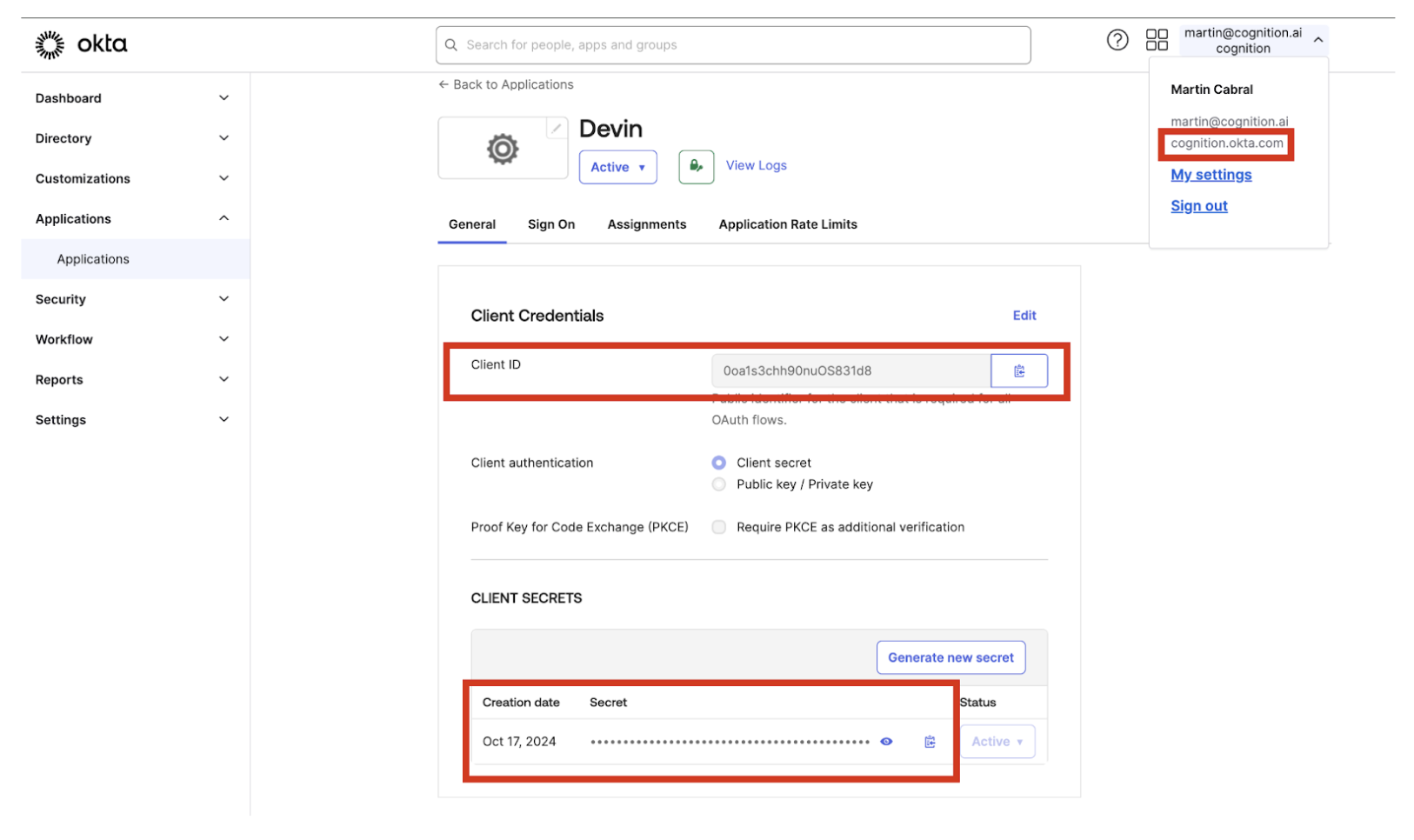
1. Once the application is created, you will need to share with Cognition the following pieces of information
1. Client ID
2. Client Secret
3. Your Okta Domain (can be obtained from the user dropdown below your email)
4. Leave Sign-out redirect URIs empty
## Share your application credentials with Cognition
1. Once the application is created, you will need to share with Cognition the following pieces of information
1. Client ID
2. Client Secret
3. Your Okta Domain (can be obtained from the user dropdown below your email)
 ## Optional
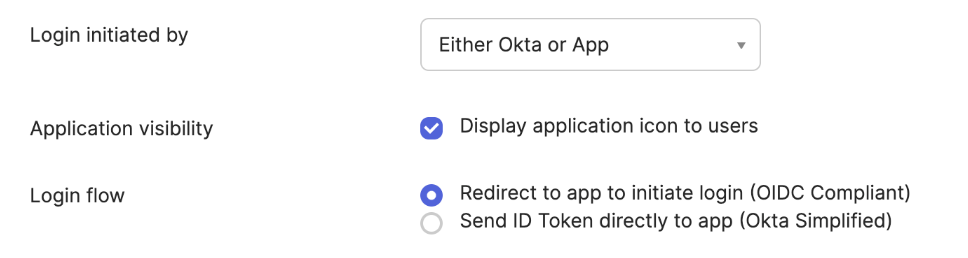
You can enable the application as an icon in your users dashboard with the following configuration:
1. Select **Either OKTA or App** for `Login initiated by`
2. Check **Display application icon to users**
3. Select **Redirect to app to initiate login (OIDC Compliant)** as the Login flow value
4. Set the Initiate login URI to your Devin Enterprise login URL
`https://.devinenterprise.com/login`
## Optional
You can enable the application as an icon in your users dashboard with the following configuration:
1. Select **Either OKTA or App** for `Login initiated by`
2. Check **Display application icon to users**
3. Select **Redirect to app to initiate login (OIDC Compliant)** as the Login flow value
4. Set the Initiate login URI to your Devin Enterprise login URL
`https://.devinenterprise.com/login`