> ## Documentation Index
> Fetch the complete documentation index at: https://docs.devinenterprise.com/llms.txt
> Use this file to discover all available pages before exploring further.

# Welcome to Devin Desktop

> Download and install Devin Desktop IDE for Mac, Windows, or Linux. Import VS Code or Cursor settings, configure themes, and start coding with AI-powered assistance.

Tomorrow's editor, today.

Devin Desktop is a next-generation AI IDE built to keep you in the flow. On this page, you'll find instructions on how to install Devin Desktop on your computer, navigate the onboarding flow, and get started with your first AI-powered project.

<Card title="Devin Local" icon="microchip" href="/desktop/devin-local">
  Our next-generation agent harness, shared with Devin CLI. Runs on your machine as the primary local agent.
</Card>

<CardGroup cols={2}>
  <Card title="Usage" icon="bars-progress" href="/desktop/accounts/usage">
    Credits and usage.
  </Card>

  <Card title="Terminal" icon="terminal" href="/desktop/terminal">
    An upgraded Terminal experience.
  </Card>
</CardGroup>

<CardGroup cols={2}>
  <Card title="MCP" icon="hammer" href="/desktop/cascade/mcp">
    MCP servers extend the agent's capabilities.
  </Card>

  <Card title="Memories" icon="cloud-word" href="/desktop/cascade/memories">
    Memories and rules help customize behavior.
  </Card>

  <Card title="Context Awareness" icon="brain" href="/desktop/context-awareness/overview">
    Instantly understands your codebase.
  </Card>

  <Card title="Advanced" icon="gears" href="/desktop/advanced">
    Advanced configuration options.
  </Card>
</CardGroup>

<CardGroup cols={2}>
  <Card title="Workflows" icon="list" href="/desktop/cascade/workflows">
    Automate repetitive trajectories.
  </Card>

  <Card title="App Deploys" icon="rocket" href="/desktop/cascade/app-deploys">
    Deploy applications in one click.
  </Card>
</CardGroup>

<Tip> See what's new with Devin Desktop in our [changelog](https://windsurf.com/changelog)! </Tip>

<Note>
  In some cases Devin Desktop may not function exactly as referenced, or documentation may be out of date.
</Note>

## Set Up

To get started, please ensure that your device meets the requirements, click the download link, and follow the instructions to install and run Devin Desktop.

[Click here](#update-devin-desktop) if you're looking for how to update Devin Desktop.

<Tabs>
  <Tab title="Mac">
    Minimum OS Version: OS X Yosemite

    <a href="https://devin.ai/download/confirmation?code=ma" target="_blank" rel="noopener noreferrer">
      <button style={{width: '170px', backgroundColor: '#317CFF', color: 'white', padding: '5px 10px', border: 'none', borderRadius: '5px', cursor: 'pointer', fontSize: '0.8rem', display: 'flex', justifyContent: 'center'}}>Download for Mac</button>
    </a>
  </Tab>

  <Tab title="Windows">
    Minimum OS Version: Windows 10

    <a href="https://devin.ai/download/confirmation?code=wu" target="_blank" rel="noopener noreferrer">
      <button style={{width: '170px', backgroundColor: '#317CFF', color: 'white', padding: '5px 10px', border: 'none', borderRadius: '5px', cursor: 'pointer', fontSize: '0.8rem', display: 'flex', justifyContent: 'center'}}>Download for Windows</button>
    </a>
  </Tab>

  <Tab title="Linux">
    Minimum Requirements: glibc >= 2.28, glibcxx >= 3.4.25 (e.g. Ubuntu 20, Debian 10, Fedora 36, RHEL 8)

    <a href="https://devin.ai/download/confirmation?code=li" target="_blank" rel="noopener noreferrer">
      <button style={{width: '170px', backgroundColor: '#317CFF', color: 'white', padding: '5px 10px', border: 'none', borderRadius: '5px', cursor: 'pointer', fontSize: '0.8rem', display: 'flex', justifyContent: 'center'}}>Download for Linux</button>
    </a>
  </Tab>
</Tabs>

## Onboarding

Once you have Devin Desktop running, you will see the page below. Let's get started! Note that you can always restart this onboarding flow with the "Reset Onboarding" command.

<Frame>
  <img src="https://mintcdn.com/cognitionai-enterprise/GYcs1r0Vcxr5GSpj/desktop/assets/windsurf/onboarding/welcome.png?fit=max&auto=format&n=GYcs1r0Vcxr5GSpj&q=85&s=a1196935e3447c0e464629a8b28c77c5" width="2344" height="1464" data-path="desktop/assets/windsurf/onboarding/welcome.png" />
</Frame>

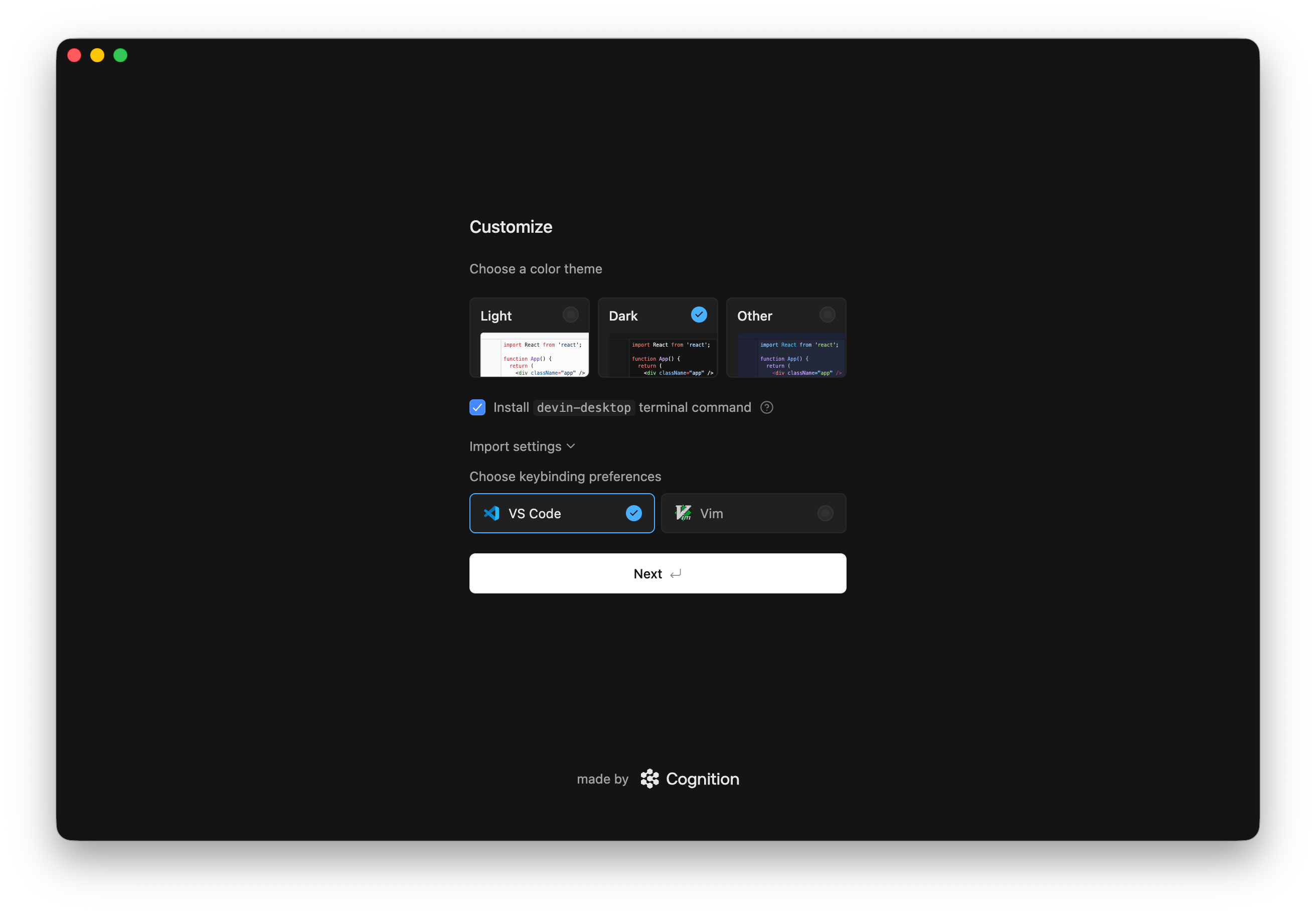
### 1. Select setup flow

If you're coming from VS Code or Cursor, you can easily import your configurations. Otherwise, select "Start fresh". You can also optionally install `windsurf` in PATH such that you can run `windsurf` from your command line.

<Frame>
  <img src="https://mintcdn.com/cognitionai-enterprise/GYcs1r0Vcxr5GSpj/desktop/assets/windsurf/onboarding/setup.png?fit=max&auto=format&n=GYcs1r0Vcxr5GSpj&q=85&s=06523d49ce6d5140551aa7147c9ae032" width="2064" height="1145" data-path="desktop/assets/windsurf/onboarding/setup.png" />
</Frame>

<Tabs>
  <Tab title="Start fresh">
    Choose your keybindings here, either default VS Code bindings or Vim bindings.

    <Frame>
      <img src="https://mintcdn.com/cognitionai-enterprise/GYcs1r0Vcxr5GSpj/desktop/assets/windsurf/onboarding/keybind.png?fit=max&auto=format&n=GYcs1r0Vcxr5GSpj&q=85&s=f7b52d641a1083c3309030eb09585d51" width="2484" height="1378" data-path="desktop/assets/windsurf/onboarding/keybind.png" />
    </Frame>
  </Tab>

  <Tab title="Import from VS Code">
    You can migrate your settings, extensions, or both here.

    <Frame>
      <img src="https://mintcdn.com/cognitionai-enterprise/GYcs1r0Vcxr5GSpj/desktop/assets/windsurf/onboarding/vscode_migration.png?fit=max&auto=format&n=GYcs1r0Vcxr5GSpj&q=85&s=5c9e53a1934d49c346de4bccdc540232" width="2486" height="1378" data-path="desktop/assets/windsurf/onboarding/vscode_migration.png" />
    </Frame>
  </Tab>

  <Tab title="Import from Cursor">
    You can migrate your settings, extensions, or both here.

    <Frame>
      <img src="https://mintcdn.com/cognitionai-enterprise/GYcs1r0Vcxr5GSpj/desktop/assets/windsurf/onboarding/vscode_migration.png?fit=max&auto=format&n=GYcs1r0Vcxr5GSpj&q=85&s=5c9e53a1934d49c346de4bccdc540232" width="2486" height="1378" data-path="desktop/assets/windsurf/onboarding/vscode_migration.png" />
    </Frame>
  </Tab>
</Tabs>

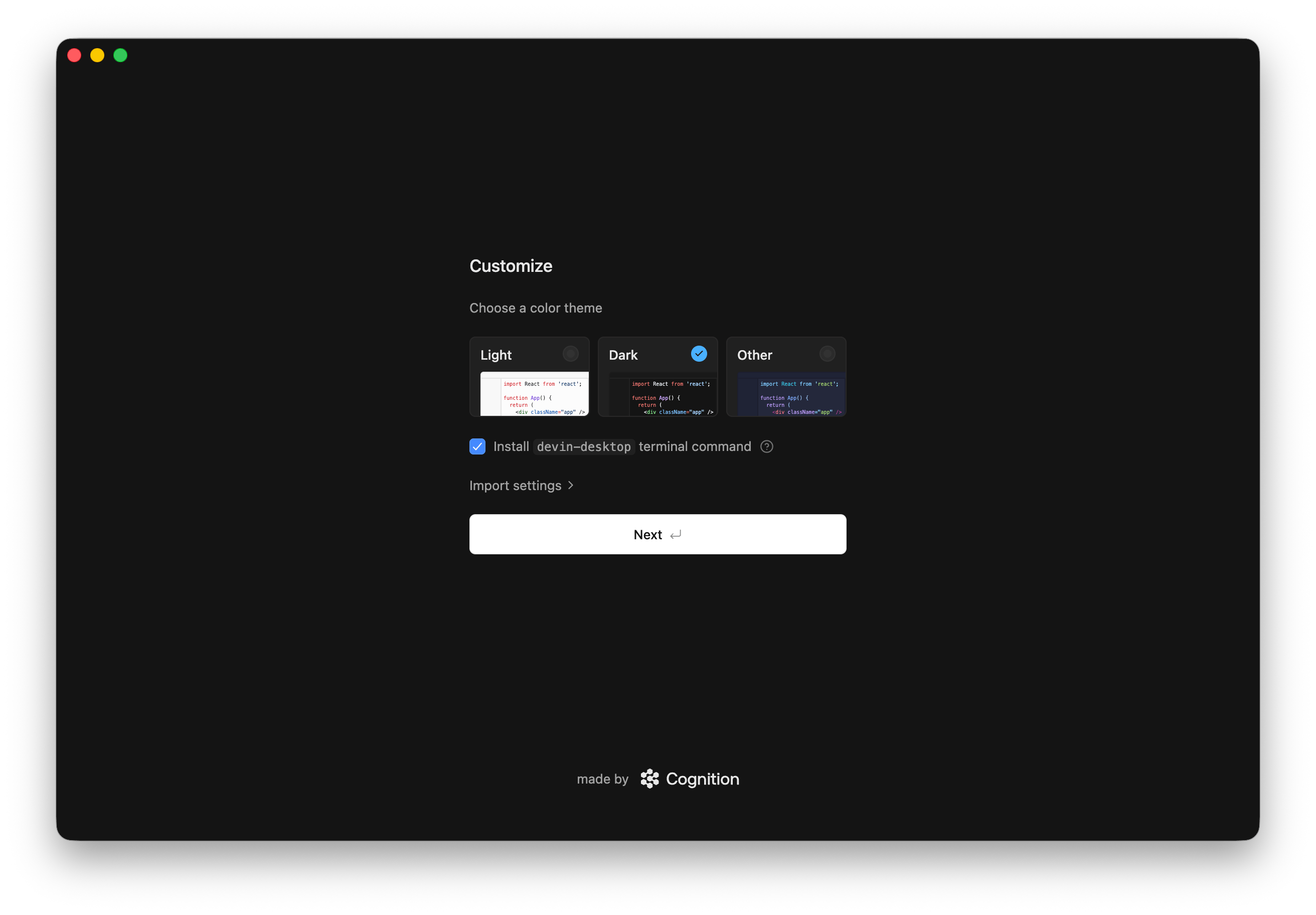
### 2. Choose editor theme

Choose your favorite color theme from these defaults! Don't worry, you can always change this later. Note that if you imported from VS Code, your imported theme will override this.

<Frame>
  <img src="https://mintcdn.com/cognitionai-enterprise/GYcs1r0Vcxr5GSpj/desktop/assets/windsurf/onboarding/theme.png?fit=max&auto=format&n=GYcs1r0Vcxr5GSpj&q=85&s=5355d3d865998921a098f025b1b4cd80" width="2482" height="1380" data-path="desktop/assets/windsurf/onboarding/theme.png" />
</Frame>

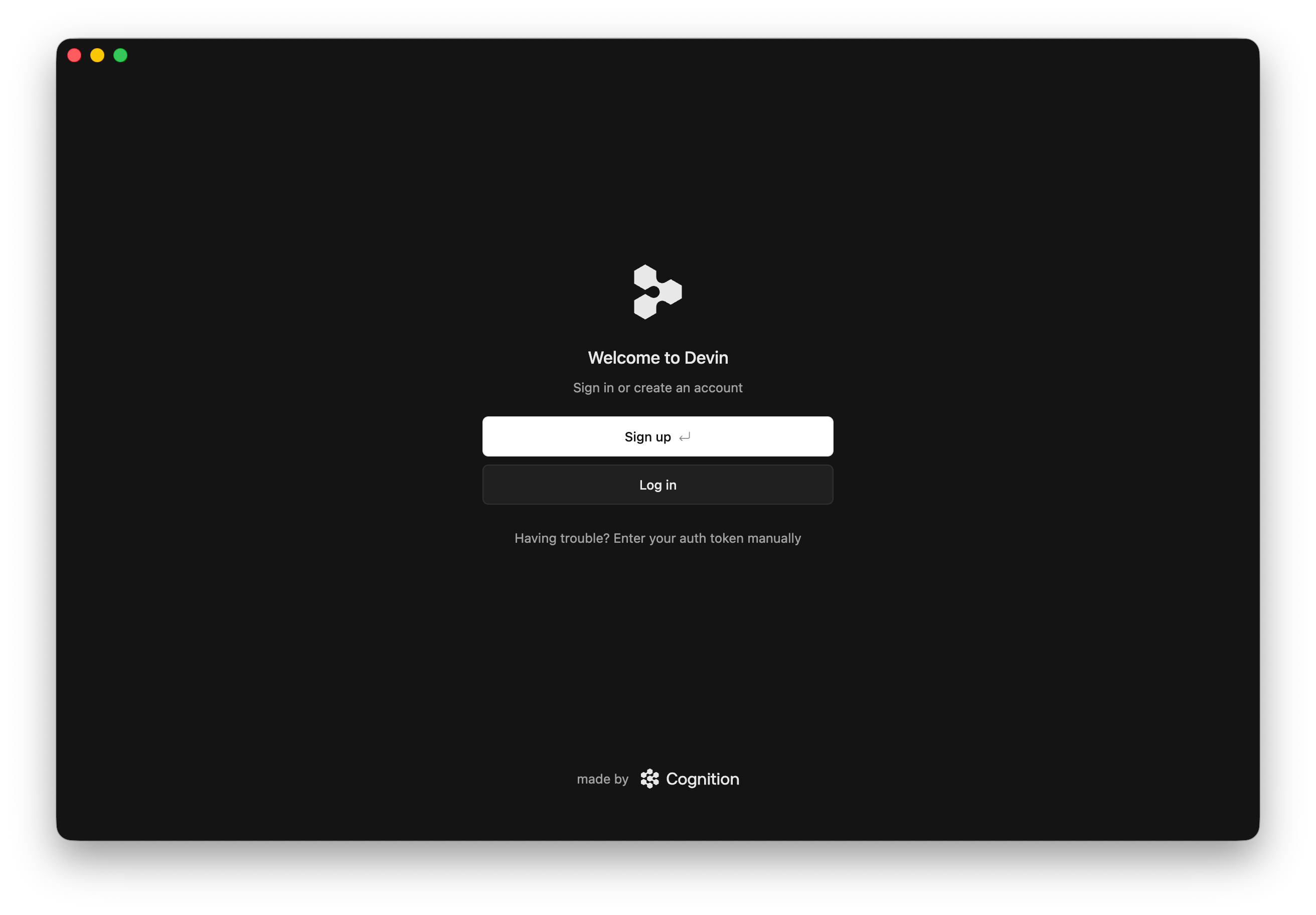
### 3. Sign up / Log in

To use Devin Desktop, you need to use your Devin Desktop account or create one if you don't have one. Signing up is completely free!

<Frame>
  <img src="https://mintcdn.com/cognitionai-enterprise/GYcs1r0Vcxr5GSpj/desktop/assets/windsurf/onboarding/auth.png?fit=max&auto=format&n=GYcs1r0Vcxr5GSpj&q=85&s=193eb8c8a35186642bedce34e06cff1e" width="2346" height="1468" data-path="desktop/assets/windsurf/onboarding/auth.png" />
</Frame>

Once you've authenticated correctly, you should see this page. Hit "Open Windsurf" and you're good to go!

<Frame>
  <img src="https://mintcdn.com/cognitionai-enterprise/GYcs1r0Vcxr5GSpj/desktop/assets/windsurf/onboarding/authenticated.png?fit=max&auto=format&n=GYcs1r0Vcxr5GSpj&q=85&s=b05033942ef1d501cf1c9a7b1a55f6ed" width="2348" height="1464" data-path="desktop/assets/windsurf/onboarding/authenticated.png" />
</Frame>

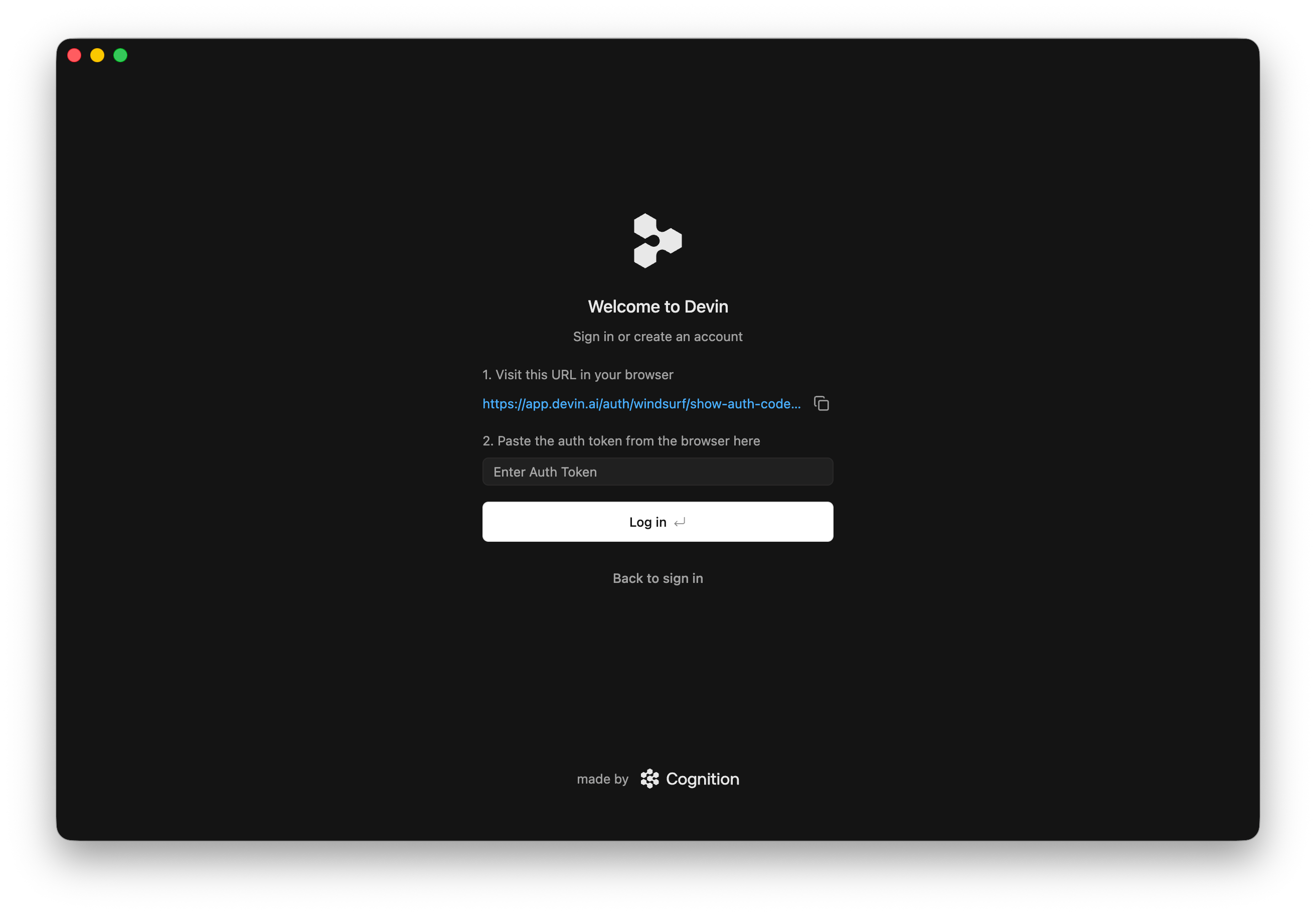
#### Having Trouble?

If you're having trouble with this authentication flow, you can also log in and manually provide Devin Desktop with an authentication code.

<Tabs>
  <Tab title="1. Select &#x22;Having Trouble?&#x22;">
    Click the "Copy link" button to copy an authentication link to your clipboard and enter this link into your browser.

    <Frame>
      <img src="https://mintcdn.com/cognitionai-enterprise/GYcs1r0Vcxr5GSpj/desktop/assets/windsurf/onboarding/manual_auth.png?fit=max&auto=format&n=GYcs1r0Vcxr5GSpj&q=85&s=eb5dd4c3c8a2a4bbbeefa6a138bc98f9" width="2478" height="1376" data-path="desktop/assets/windsurf/onboarding/manual_auth.png" />
    </Frame>
  </Tab>

  <Tab title="2. Enter Authentication Code">
    Copy the authentication code displayed in the link and enter it into Devin Desktop.

    <Frame>
      <img src="https://mintcdn.com/cognitionai-enterprise/GYcs1r0Vcxr5GSpj/desktop/assets/windsurf/onboarding/manual_auth_onboarding.png?fit=max&auto=format&n=GYcs1r0Vcxr5GSpj&q=85&s=0a0f7f70ac48449f47abfdb8a0ace9f9" width="1990" height="1858" data-path="desktop/assets/windsurf/onboarding/manual_auth_onboarding.png" />
    </Frame>
  </Tab>
</Tabs>

### 4. Let's Surf!

<Frame>
  <video autoPlay muted loop playsInline src="https://mintcdn.com/cognitionai-enterprise/GYcs1r0Vcxr5GSpj/desktop/assets/windsurf/onboarding/lets_surf.mp4?fit=max&auto=format&n=GYcs1r0Vcxr5GSpj&q=85&s=9aa61b508cb66315e0f3fb3ed759a36b" data-path="desktop/assets/windsurf/onboarding/lets_surf.mp4" />
</Frame>

<Card title="Recommended Plugins" icon="puzzle-piece" href="/desktop/recommended-plugins">
  Explore some of our recommended plugins to get the most out of Devin Desktop!
</Card>

## Update Devin Desktop

To update Devin Desktop, you can click on the "Restart to Update ->" button in the top right corner of the menu bar.

<Frame>
  <img src="https://mintcdn.com/cognitionai-enterprise/GYcs1r0Vcxr5GSpj/desktop/assets/windsurf/update-windsurf.png?fit=max&auto=format&n=GYcs1r0Vcxr5GSpj&q=85&s=aec82f89ee58ff41bcff5bc2011cbcdc" width="600" height="66" data-path="desktop/assets/windsurf/update-windsurf.png" />
</Frame>

If you are not seeing this button, you can:

1. Click on your Profile icon dropdown > Check for Updates

2. In the Command Palette (`Cmd/Ctrl+Shift+P`) > "Check for Updates"

## Things to Try

Now that you've successfully opened Devin Desktop, let's try out some of the features! These are all conveniently accessible from the starting page. :)

<AccordionGroup>
  <Accordion title="Chat with the agent">
    <Frame>
      <img src="https://mintcdn.com/cognitionai-enterprise/UuM77FPA20O2QmDP/desktop/assets/windsurf/cascade.png?fit=max&auto=format&n=UuM77FPA20O2QmDP&q=85&s=80aacbefdfe0e9331a830dd9525cc53d" width="2062" height="1548" data-path="desktop/assets/windsurf/cascade.png" />
    </Frame>

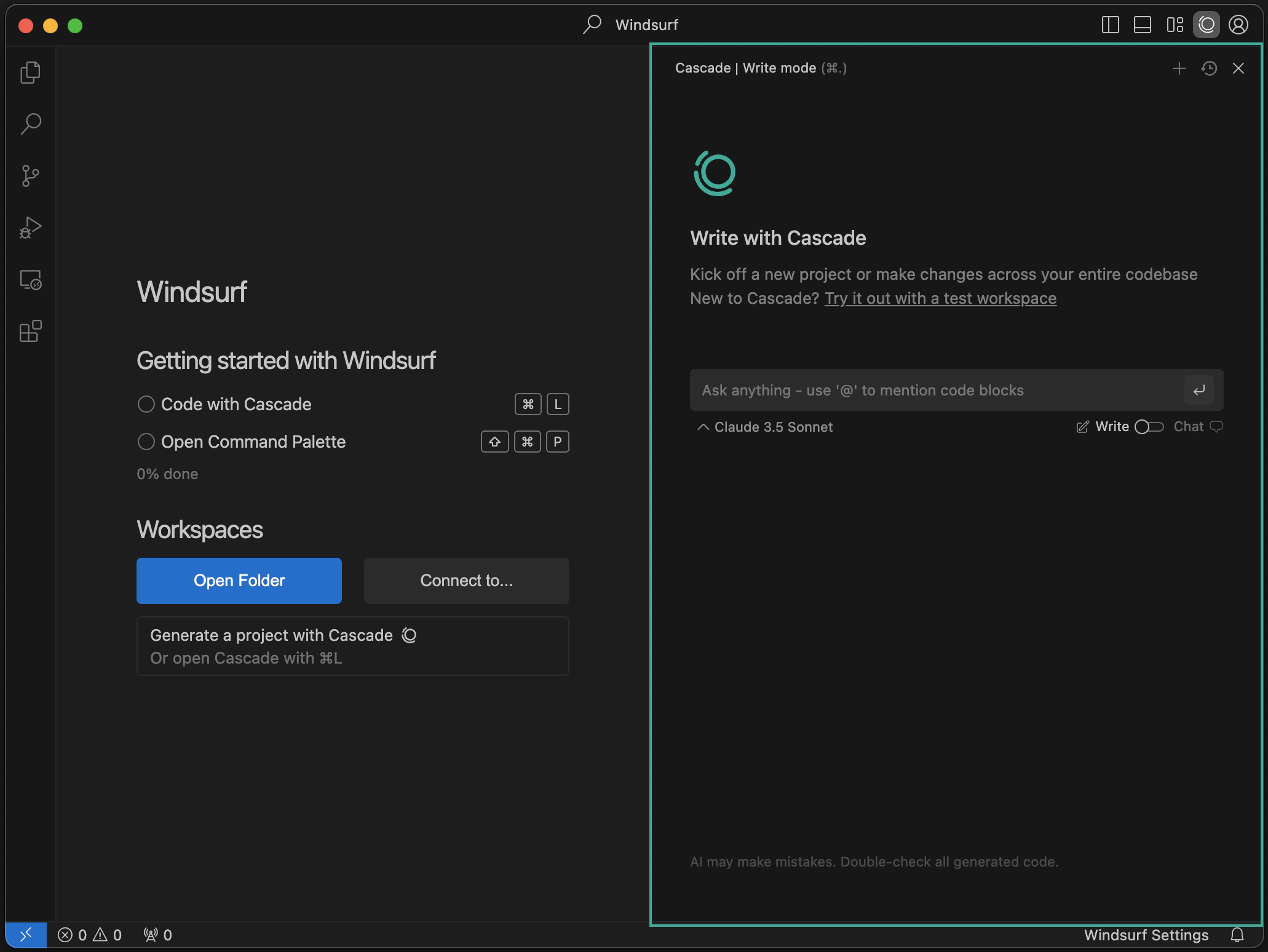
    On the right side of the IDE, you'll notice the agent panel. This is your AI-powered code assistant! You can chat, write code, and run code with it. Learn more about [Devin Local](/desktop/devin-local).
  </Accordion>

  <Accordion title="Generate a project with the agent">
    <Frame>
      <img src="https://mintcdn.com/cognitionai-enterprise/GYcs1r0Vcxr5GSpj/desktop/assets/windsurf/cascade_generate.png?fit=max&auto=format&n=GYcs1r0Vcxr5GSpj&q=85&s=17e46bc9a723417eeebf0a31fde2bcf0" width="2062" height="1548" data-path="desktop/assets/windsurf/cascade_generate.png" />
    </Frame>

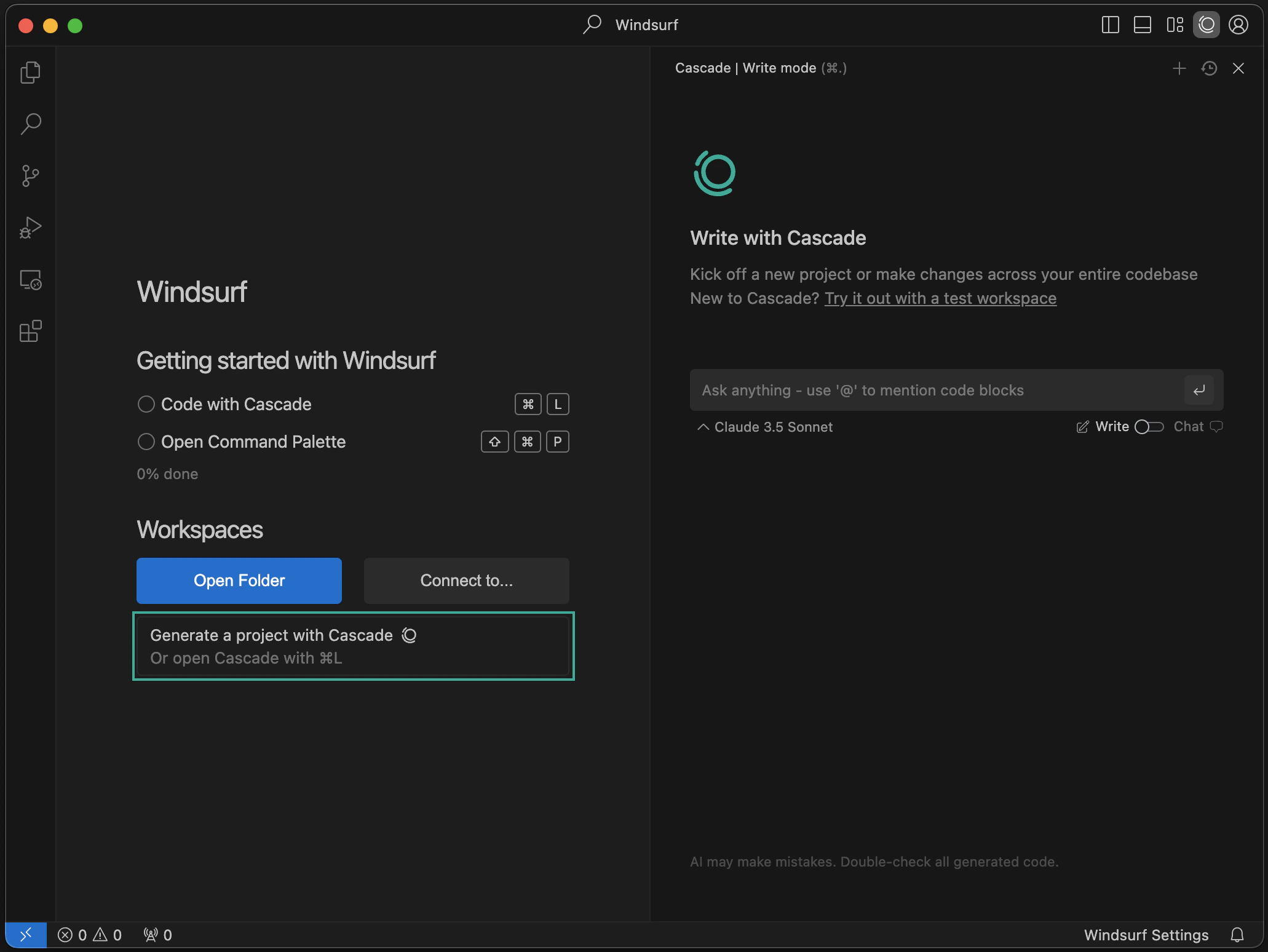
    You can create brand new projects with the agent! Click the "New Project" button to get started.
  </Accordion>

  <Accordion title="Open Folder / Connect to Remote Server">
    <Frame>
      <img src="https://mintcdn.com/cognitionai-enterprise/GYcs1r0Vcxr5GSpj/desktop/assets/windsurf/open_workspace.png?fit=max&auto=format&n=GYcs1r0Vcxr5GSpj&q=85&s=c1b10682d94b67400544e8c9f9998cc7" width="2062" height="1548" data-path="desktop/assets/windsurf/open_workspace.png" />
    </Frame>

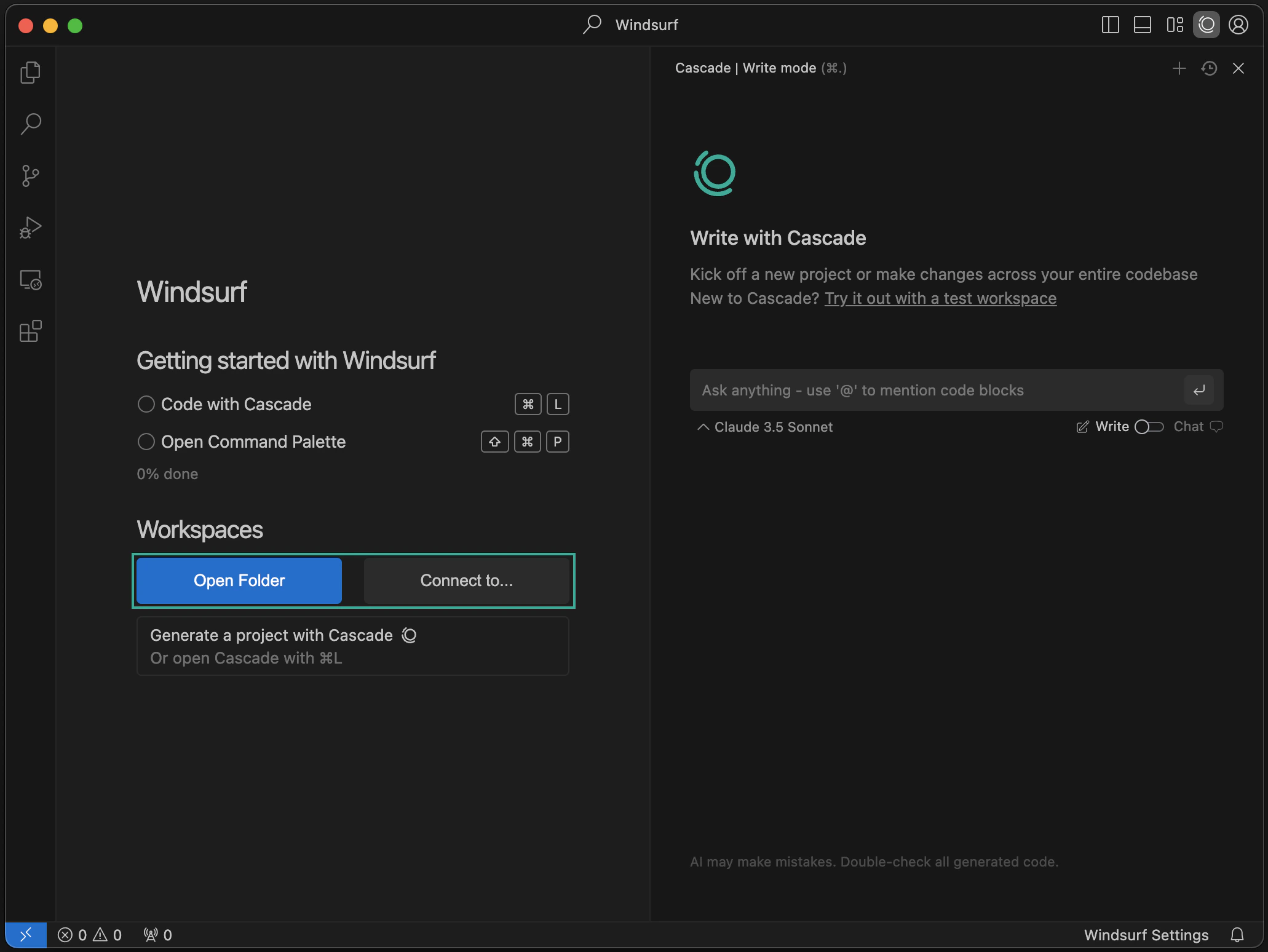
    You can open a folder or connect to a remote server via SSH or a local dev container. Learn more [here](/desktop/advanced).
  </Accordion>

  <Accordion title="Configure Windsurf Settings">
    <Frame>
      <img style={{width: '50%', display: 'block', margin: 'auto'}} src="https://mintcdn.com/cognitionai-enterprise/GYcs1r0Vcxr5GSpj/desktop/assets/windsurf/windsurf-settings-panel.png?fit=max&auto=format&n=GYcs1r0Vcxr5GSpj&q=85&s=17aaefcf5160be28bebb544039523b53" width="754" height="986" data-path="desktop/assets/windsurf/windsurf-settings-panel.png" />
    </Frame>

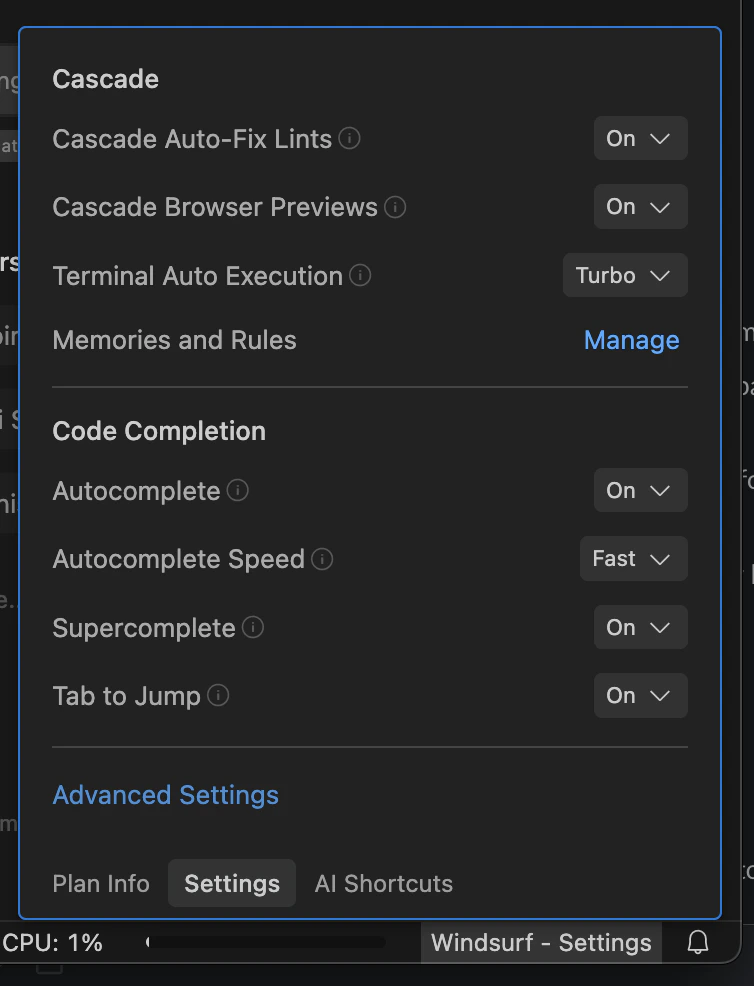
    Click on the "Windsurf - Settings" button on the bottom right to pop up the settings panel. To access Advanced Settings, click on the button in this panel or select "Windsurf Settings" in the top right profile dropdown.
  </Accordion>

  <Accordion title="Open Command Palette">
    <Frame>
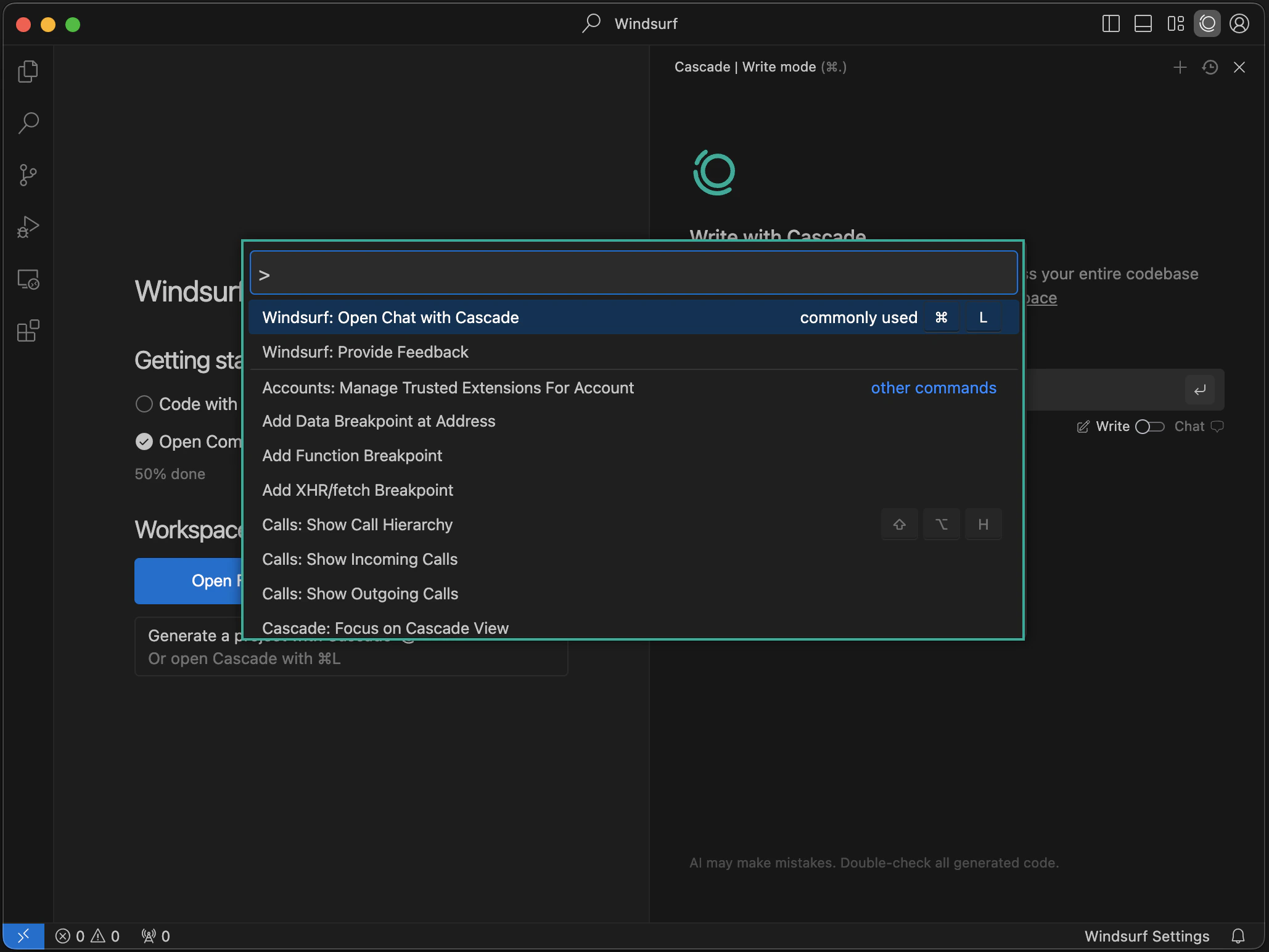
      <img src="https://mintcdn.com/cognitionai-enterprise/GYcs1r0Vcxr5GSpj/desktop/assets/windsurf/command_palette.png?fit=max&auto=format&n=GYcs1r0Vcxr5GSpj&q=85&s=058dd12e004f25d3db54aec049bb9051" width="2058" height="1544" data-path="desktop/assets/windsurf/command_palette.png" />
    </Frame>

    You can open the command palette with the `⌘+⇧+P` (on Mac) or `Ctrl+Shift+P` (on Windows/Linux) shortcut. Explore the available commands!
  </Accordion>
</AccordionGroup>

## Forgot to Import VS Code Configurations?

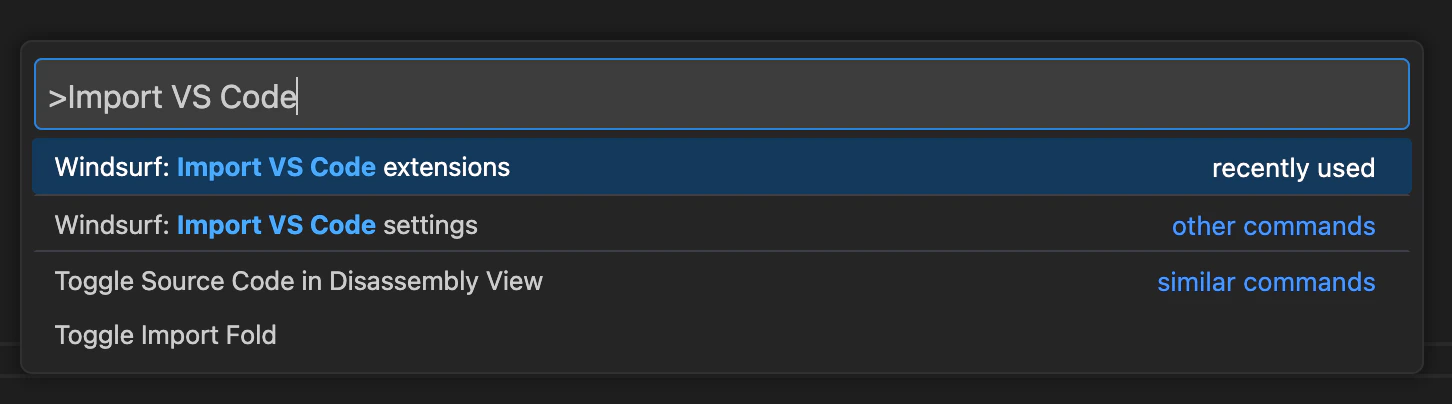
You can easily import your VS Code/Cursor configuration into Devin Desktop if you decide to do so after the onboarding process.

Open the command palette (Mac: `⌘+⇧+P`, Windows/Linux: `Ctrl+Shift+P`) and type in the following:

<Tabs>
  <Tab title="VS Code">
    <Frame>
      <img src="https://mintcdn.com/cognitionai-enterprise/67FeEoHHRVyS5z3e/desktop/assets/import-vscode.png?fit=max&auto=format&n=67FeEoHHRVyS5z3e&q=85&s=ded321229e6d665ecf17a2bdfee38407" width="1452" height="404" data-path="desktop/assets/import-vscode.png" />
    </Frame>
  </Tab>

  <Tab title="Cursor">
    <Frame>
      <img src="https://mintcdn.com/cognitionai-enterprise/GYcs1r0Vcxr5GSpj/desktop/assets/windsurf/import-cursor.png?fit=max&auto=format&n=GYcs1r0Vcxr5GSpj&q=85&s=9dcb153d7d882e176e503a89a5de9955" width="1454" height="272" data-path="desktop/assets/windsurf/import-cursor.png" />
    </Frame>
  </Tab>
</Tabs>

## Incompatible Extensions

There are a few extensions that are incompatible with Devin Desktop. These include other AI code complete extensions and proprietary extensions. You cannot install extensions through any marketplace on Devin Desktop.

## Custom App Icons (beta)

For paying users of Devin Desktop, you can choose between different Devin Desktop icons while it sits in your dock. Currently, this feature is only available for Mac OS, with other operating systems coming soon.

To change your app icon, simply click the profile/settings icon in the top right corner of the editor and select "Customize App Icon".

## Devin Desktop Next

Devin Desktop Next is a prerelease version of Devin Desktop which users can choose to opt-in to access the newest features and capabilities as early as possible, even if the features are not fully polished. Features will typically be rolled out to Devin Desktop Next first, and then into the stable release shortly after.

You can opt-in to Devin Desktop Next simply by [downloading it here](https://windsurf.com/editor/download-next).

## Uninstall Devin Desktop

To uninstall Devin Desktop from your system, follow these steps:

<Steps>
  <Step title="Close Devin Desktop">
    Ensure that Devin Desktop is not currently running before proceeding with the uninstallation.
  </Step>

  <Step title="Delete the Devin Desktop application">
    <Tabs>
      <Tab title="Mac">
        Drag the Devin Desktop application from the Applications folder to the Trash.
      </Tab>

      <Tab title="Windows">
        The application is usually located in one of these folders:

        * `C:\Program Files\Windsurf`
        * `C:\Users\[YourUsername]\AppData\Local\Programs\Windsurf`

        Delete the Devin Desktop folder from the appropriate location.
      </Tab>

      <Tab title="Linux">
        Remove the Devin Desktop folder from the location where you installed it.
      </Tab>
    </Tabs>
  </Step>

  <Step title="Remove configuration files">
    <Tabs>
      <Tab title="Mac/Linux">
        Delete the Devin Desktop configuration folder:

        ```bash theme={null}
        rm -rf ~/.codeium/windsurf
        ```
      </Tab>

      <Tab title="Windows">
        Delete the Devin Desktop configuration folder:

        ```
        C:\Users\[YourUsername]\.codeium\windsurf
        ```
      </Tab>
    </Tabs>
  </Step>

  <Step title="Additional cleanup">
    <ul>
      <li>If you installed Devin Desktop in PATH, remove it from your system's PATH environment variable.</li>
      <li>If you installed Devin Desktop using your system's package manager or control panel, you can also use that to uninstall it.</li>
      <li>Empty your Trash or Recycle Bin to complete the uninstallation.</li>
    </ul>
  </Step>
</Steps>